Product preview · Fictional patient data

OvaFlow

Windows workstation

Beside the chart, never on top of it.

On the clinic workstation, OvaFlow can be a small floating pill, a 384-pixel rail docked beside a modeled nAbleIVF, eIVF or Artisan chart, or a full workspace. Each view keeps the same patient, signed source, owner and next step in view without taking over keyboard focus.

In the first pilot
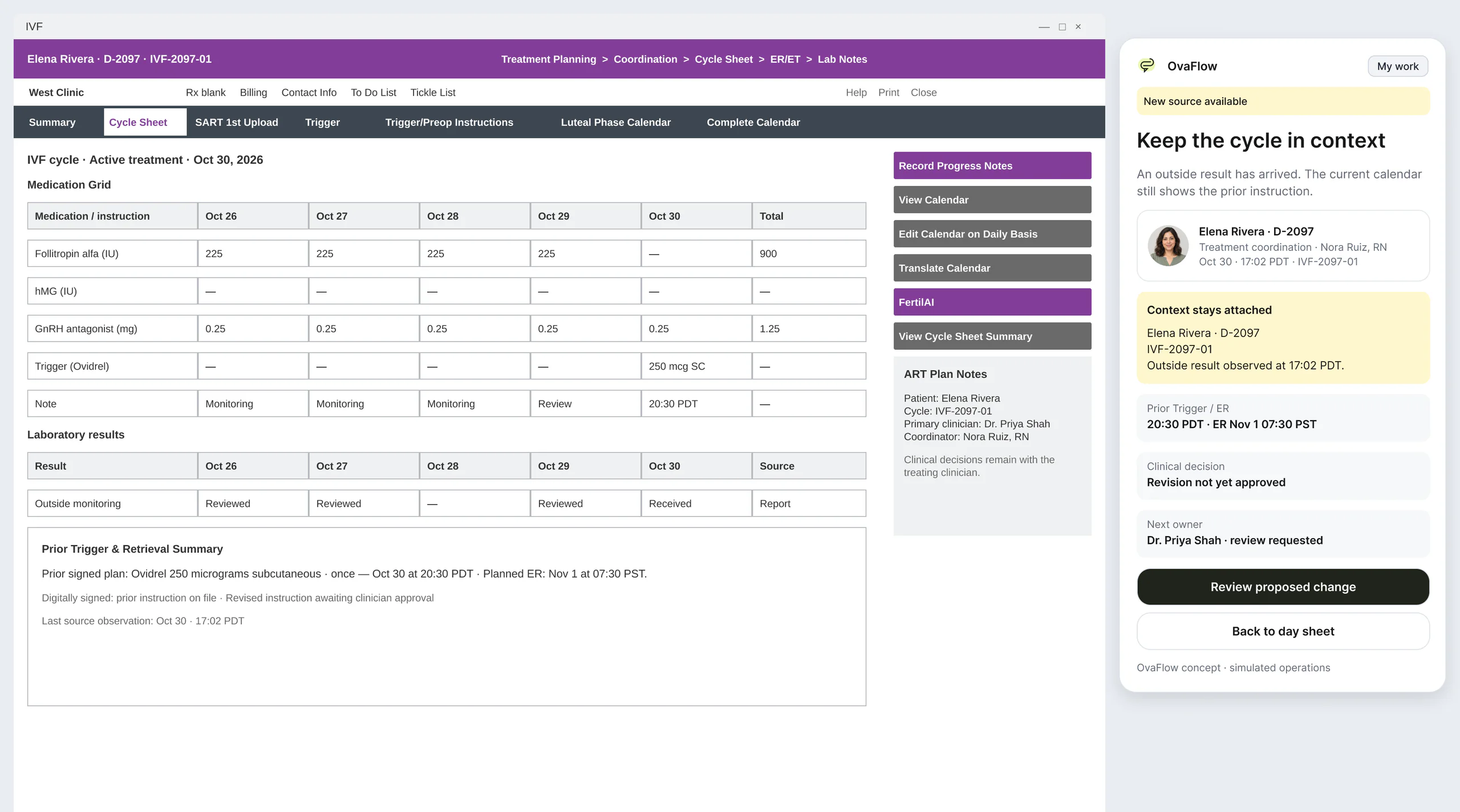
Compact companion rail beside a modeled Artisan cycle sheet (prototype walkthrough), showing patient, task and owner. Modeled workflow example; fictional patient data.
  1. A new outside result arrives. The companion keeps Elena's cycle in context and names the next owner.
  2. Dr. Shah's approved source is compared, read-only, with the Trigger fields still in the EMR.
  3. The continuation is ready for review in the EMR. The EMR fields stay untouched until staff act there.
Prototype walkthrough · Fictional patient dataArtisan · Modeled workflow example

What it's for

Four shapes, one task.

A floating companion, a rail beside the chart and a full workspace, all on the same task. Nurse coordinators, physicians and front-desk staff who live in the EMR all day.

  1. Floating companion

    A compact pill at the bottom-right or left edge of a Windows desktop, positioned clear of EMR Save buttons and form footers so staff never mis-click.

  2. Rail beside the chart

    A 384-pixel companion docked next to the open chart in a managed browser or Windows session, read-only until a person reviews and places a draft in the EMR.

  3. Full workspace

    My work, patients, cycle boards and care conversations, with the signed source, amendment history and activity trail beside every task.

  4. Tray and readiness

    Honest Windows system-tray readiness, a one-click pause during shared screens, microphone check before calls, and manual launch when autostart is off.

Pill, rail, workspace

One companion, three sizes.

Scroll to open it: the same window grows from a pill on the desktop into a panel beside a modeled chart, then into the full workspace. Every screen is a frame from the recorded prototype.

  1. A pill that stays out of the way.

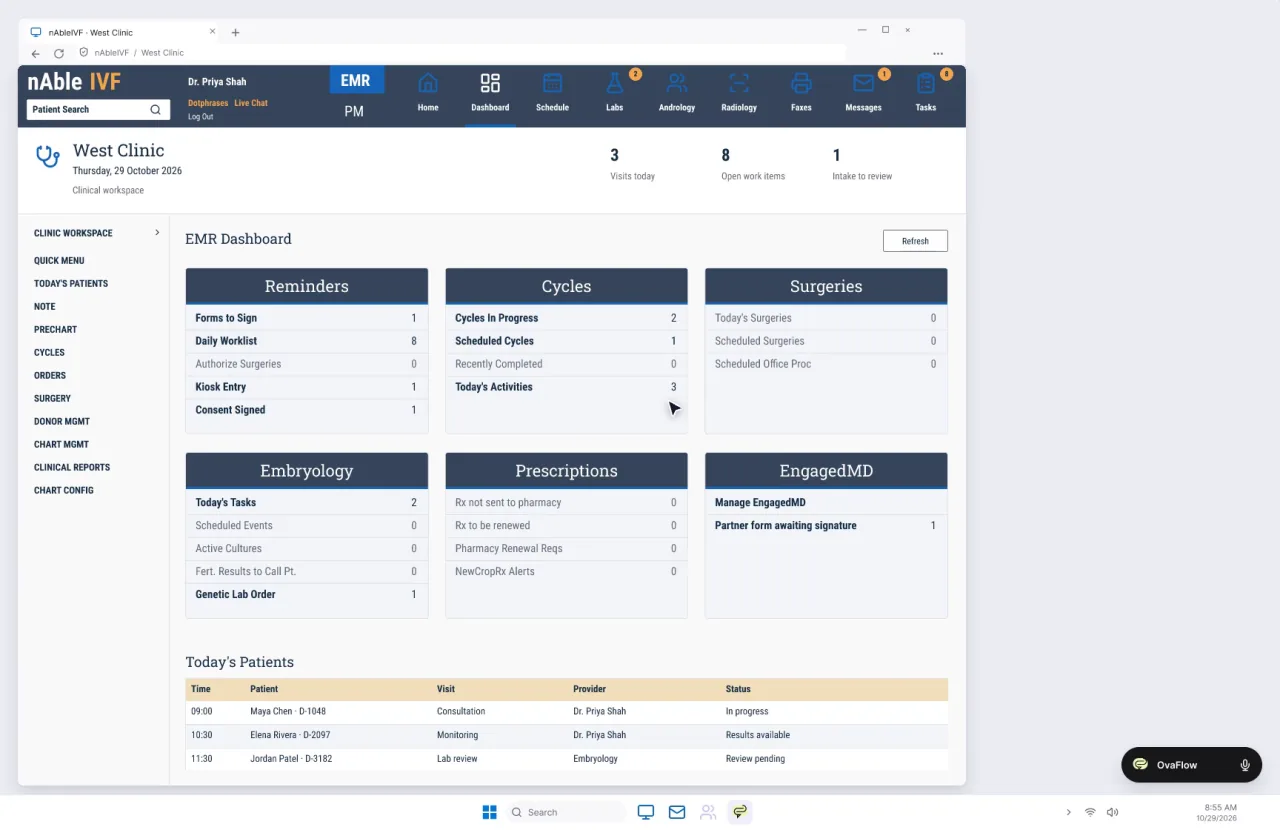
    The companion starts as a small pill at the bottom right of the Windows desktop, clear of EMR controls. It can dock on the left edge instead, and it never takes keyboard focus.

    nAbleIVF · Modeled workflow example · Fictional patient data
    A Windows desktop with a modeled nAbleIVF dashboard and a small OvaFlow pill at the bottom right. Fictional patient data.
  2. Opened, it docks beside the chart.

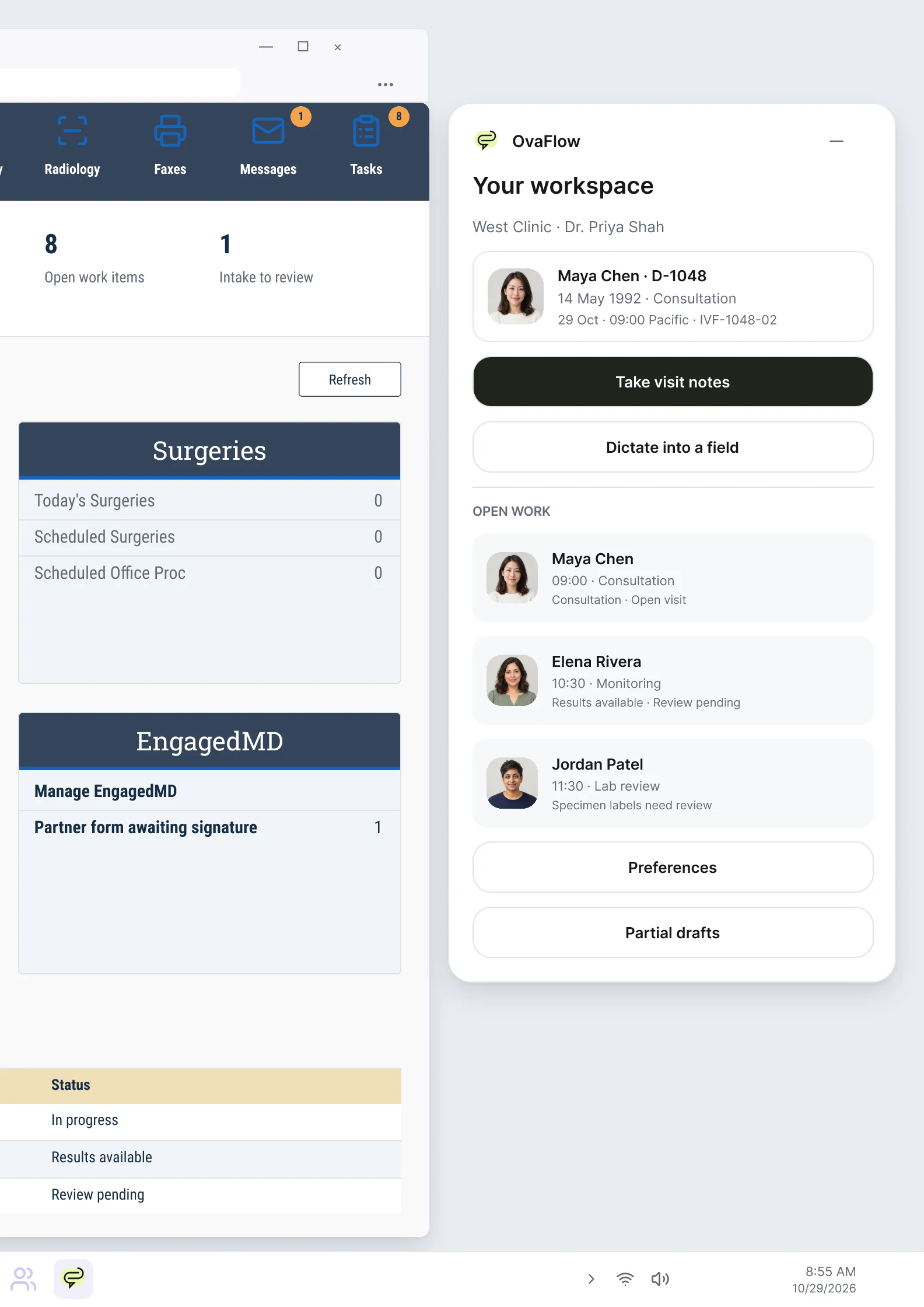
    The panel sits next to the EMR window instead of on top of it: the current patient, visit notes, dictation and the day's open work. Nothing in the chart changes until staff act there.

    nAbleIVF · Modeled workflow example · Fictional patient data
    Windows floating companion (prototype walkthrough): the pill expands into a docked workspace beside a modeled nAbleIVF screen, then dictates into a field. Fictional patient data.
  3. The full workspace, one owner on every row.

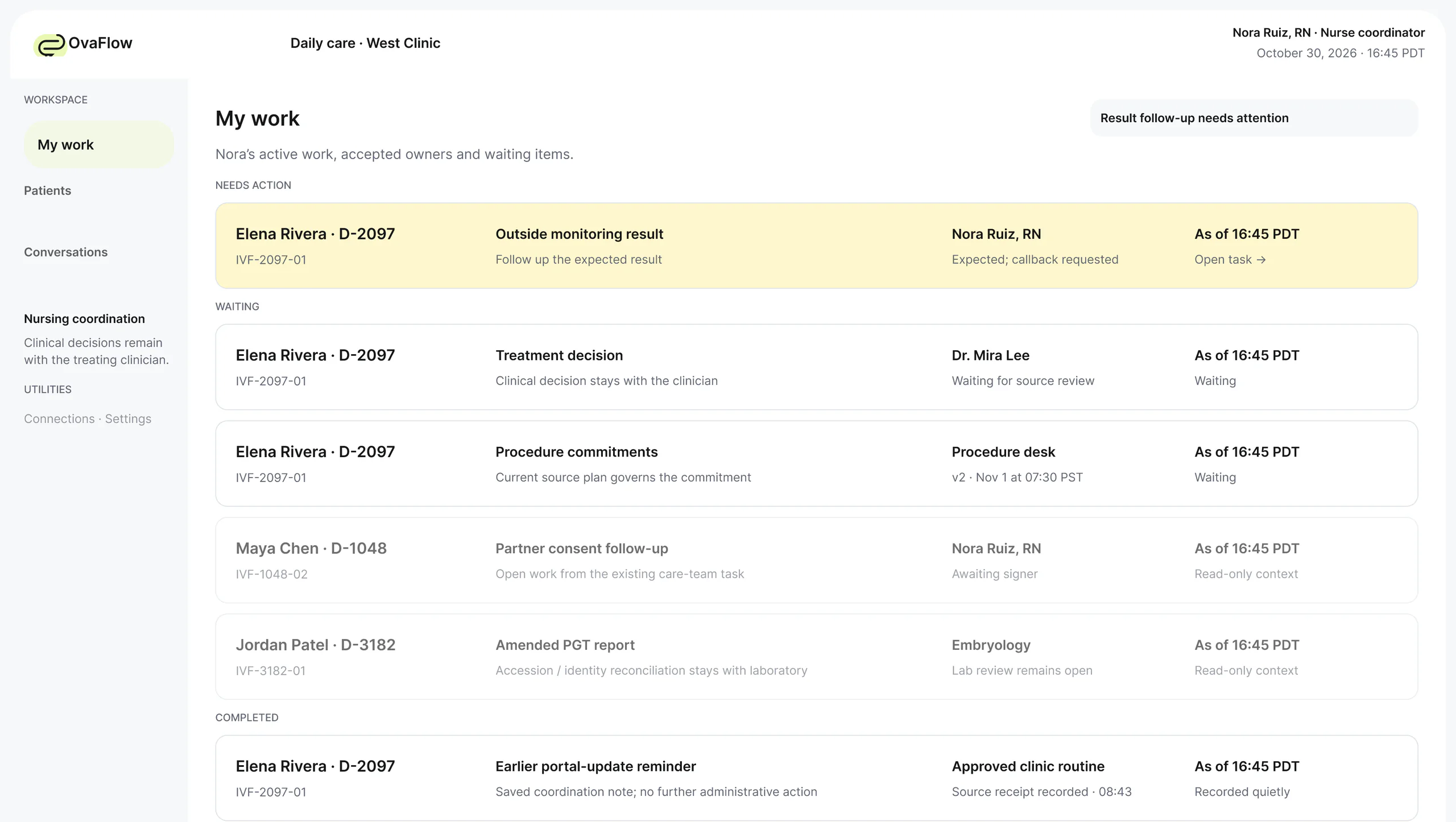
    Elena's row carries across. In My work it shows her outside result and who owns it, beside Nora's other items sorted into what needs action and what is waiting. The treatment decision stays with Dr. Mira Lee.

    Prototype walkthrough · Fictional patient data
    Expanded workspace My work queue (prototype walkthrough) at two points in the same day: before and after an explicit handoff acceptance. Fictional patient data.

Device anatomy & visibility matrix

Workstation geometry: four footprints that stay out of the EMR's way

On a clinic Windows desktop (1728×1120 recording viewport), OvaFlow sizes itself to the moment—from a system-tray icon to a floating edge pill, a 384-pixel rail beside the chart, or a full workspace—without covering EMR Save controls or stealing keyboard focus [1][2].

In the first clinic pilot · 1728×1120 Windows workstation beside the open EMR chart

Worked workstation trace: call capture, Save Draft check, wrong-chart stop & Citrix recovery

Across the desktop consultation, monitoring, call-capture and workstation-recovery walkthroughs, the Windows workstation surface handles four everyday clinical desk realities.

  1. 09:04 (24h)Dr. Mira Lee, MD

    Zone 01 · Floating edge pill (Teams consult)

    Joins a telehealth consult on Windows. The pill prompts quietly at the screen edge clear of EMR footers; Dr. Lee tests her USB headset, confirms Maya Chen's encounter, and records verbal consent before capture starts.

    Screen boundary

    No global keyboard shortcut hijacks the desk; recording never starts before consent.

  2. 10:18 (24h)Dr. Mira Lee, MD

    Zone 02 · 384-pixel chart rail (Save Draft check)

    Places the reviewed consultation note into the modeled nAbleIVF editor. The rail immediately shows “Text placed, save not verified” in amber.

    Screen boundary

    Task closes only after Dr. Lee clicks Save Draft in the EMR and the saved state is read back.

  3. 11:32 (24h)Nora Ruiz, RN

    Zone 03 · Patient banner & Citrix guard

    Mid-draft for Maya Chen, another chart tab opens, then the EMR session times out and Citrix blocks clipboard redirection [2].

    Screen boundary

    Wrong-chart stop blocks cross-patient placement; reviewed draft survives both timeout and clipboard block.

  4. 17:08 → 17:11 PDTNora Ruiz, RN

    Zone 04 · Interrupted observation recovery

    Right after saving Elena Rivera's trigger update in the modeled Artisan chart at 17:08 PDT, the workstation view drops.

    Screen boundary

    Status switches to “Observation interrupted” (never assumed done) until the 17:11 PDT readback.

Desktop & Windows safeguard flow. The 384-pixel rail and floating pill maintain an explicit clearance zone around the EMR's Save / Sign footer, inspect the patient banner before allowing placement, and preserve the draft if Citrix or the browser session drops.
Visibility table, explicit boundaries & glossaryWhat shows where on Desktop & Windows & what never happens on Desktop & WindowsSub-surface visibility table, what Desktop & Windows does and never does, and related safeguard terms.
What shows where on Desktop & Windows
Sub-surface / stateWhat is shownWhat is hidden or redactedAllowed actionStays at the desk or EMR
System tray & background stateReadiness dot, microphone status, pause toggle for screen-sharing, and manual launch control.Zero patient names or clinical notes until the clinician opens a companion panel.Pause observation during a shared screen, run a 3-second mic check, or open the pill.All clinical charting, session sign-in and workstation lock policies [1].
Floating companion pill (bottom-left / bottom-right)Active patient match badge, quiet Teams/Zoom call prompt, and active dictation timer.Full multi-line note body stays collapsed so the EMR chart remains unobstructed.Confirm patient and consent to start call capture, or practice dictation outside a chart.EMR Save, Sign and e-prescribing buttons (pill docks clear of form footers).
384-pixel rail beside the chartSigned source document, side-by-side field compare, reviewed draft, and save-check status.Blocks and hides placement controls if the open EMR chart belongs to a different patient.Compare intake/approval fields read-only, place reviewed text, and verify EMR save readback.Clicking Save / Save Draft, signing orders, updating structured allergies, and e-prescribing.
Full desktop workspaceRole-scoped My Work queue, cycle boards, care-conversation gates, and full amendment history.Superseded instruction versions are watermarked and cannot be re-staged as current.Triage daily queues, assign owners, review multi-system readiness gates, and audit changes.System-of-record chart commits, lab witnessing records, and portal publication.
Citrix / expired browser recovery state [2]Amber “Transfer blocked” or “Signed out of EMR” banner with the reviewed draft preserved.Never writes to the Windows clipboard when Citrix ICA policy forbids redirection [2].Keep the draft attached to Maya Chen's task until the EMR session is restored.Re-authentication into the EMR and final field save.

Designed to do on Desktop & Windows

What belongs on this screen

  • Docks as a floating pill, a 384-pixel rail beside the chart, or a full task workspace on Windows.
  • Verifies that the active EMR chart matches the draft's patient before allowing placement.
  • Checks that placed text is actually saved in the EMR before closing the documentation task.
  • Preserves audio and reviewed drafts when a USB headset unplugs, a browser times out, or Citrix blocks clipboard paste.

Explicit boundary

What never happens on Desktop & Windows

  • Never clicks Save, Sign, Approve or Send inside the clinic's EMR on its own.
  • Never steals keyboard focus from an active EMR text field or registers surprise global hotkeys.
  • Never overlaps the bottom action bar where EMR Save and Cancel buttons sit.
  • Never retries an unverified write in the background after a dropped connection.

Questions

Common questions about Desktop & Windows

Frequently asked questions4 questions on Desktop & Windows privacy, boundaries and rollout timing
How does the desktop companion avoid covering the EMR's Save or Sign buttons?

In our Windows workstation layout, the 384-pixel rail docks beside the browser or EMR viewport rather than floating over the center of the form, and the compact pill is pinned to reserved corner coordinates with an explicit keep-out zone around form footers.

Does the desktop companion steal keyboard focus while a clinician is typing in the EMR?

No. Named-field dictation and read-only comparisons use non-activating window inspection so the clinician's cursor and keyboard focus remain inside the EMR until they explicitly click the companion.

What happens if clinic IT disables autostart or browser extensions?

When autostart is off, the system-tray readiness indicator states plainly that OvaFlow is paused until launched manually. If extensions or UI Automation are restricted, operations step down to human continuation where staff review the draft side by side.

How does the workstation surface handle Citrix Virtual Apps sessions?

When an EMR runs inside a remote Citrix session whose ICA policy blocks clipboard redirection, OvaFlow detects that transfer is blocked, shows an amber “Transfer blocked” chip, and keeps the reviewed draft safe in the local companion rather than losing it.

Platform standards & referencesPublic platform documentation cited on this page (2 verified sources)Apple Human Interface Guidelines, WidgetKit, ActivityKit, watchOS, Windows UIA and Citrix ICA documentation.
  1. [1]

    Microsoft Learn · Windows UI Automation (UIA) Accessibility Framework Overview (verified 2026-11-03)

    Operating-system specification for inspecting desktop windows, control trees and keyboard focus on Windows.

  2. [2]

    Citrix Documentation · ICA Policy Settings — Client Clipboard Redirection (verified 2026-11-03)

    Virtual desktop policy controls governing clipboard transfer between local endpoints and hosted clinical desktops.

In the walkthroughs

What you can watch it do.

In the first pilot

In the first pilot, Windows first. Each EMR step is tested in a clinic's own setup before it is turned on, and the Artisan example has not yet been checked against a real clinic build.

  1. Docks away from Save buttons and stays out of keyboard focus
  2. Microphone test and quiet Teams and Zoom call prompts
  3. Click-first control with no global shortcut by default
  4. Practice dictation outside any chart
  5. Named-field dictation without stealing focus
  6. Wrong-chart stops and save checks beside the EMR
  7. Holds reviewed drafts across browser timeouts and blocked remote clipboards

Walkthroughs

Desktop & Windows, recorded.

Recordings of the interactive design prototype with fictional patients. Open one to play it with chapters and captions.

  • Artisan: trigger approval, the wrong chart and an interrupted view

    Beside a modeled Artisan view, the companion compares Dr. Priya Shah's approval with the unchanged Artisan fields, stops on Maya's open chart, and won't assume an update it didn't see.

    0:29Browser with the 384-pixel compact companionArtisan · Modeled workflow example · Not yet checked against a real clinic build

  • Workstation failure and recovery catalog

    Fourteen designed recovery states, from an unplugged headset to a blocked remote-desktop clipboard, each keeping the draft and the right patient.

    0:26Browser with the compact recovery companionnAbleIVF and eIVF · Modeled workflow examples

Next step

See the workspace beside your EMR.

We'll walk one of your shifts through the desktop workspace design, next to a modeled EMR screen. Fictional records only; please don't send patient data.