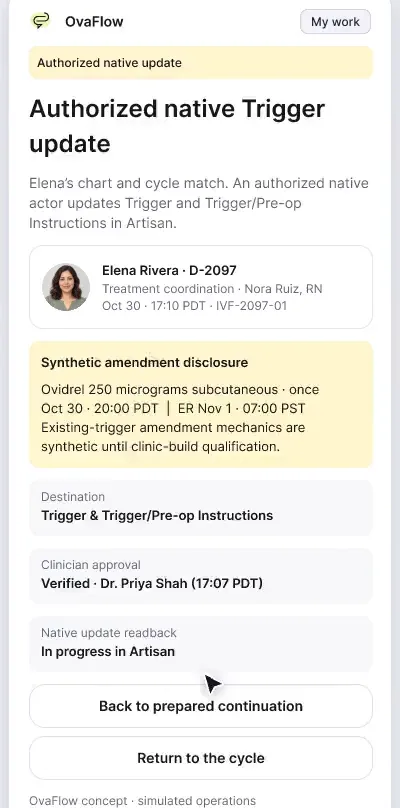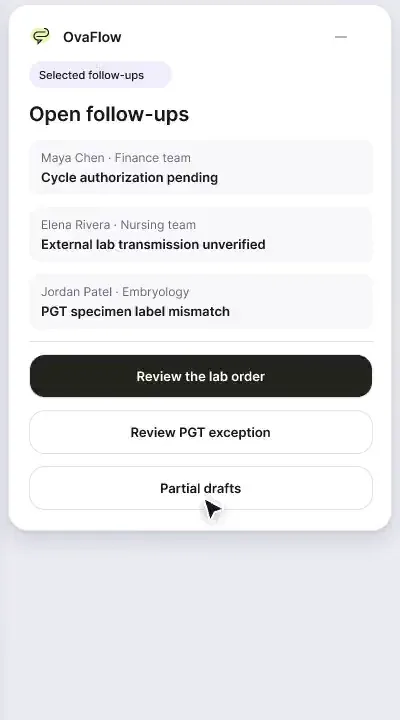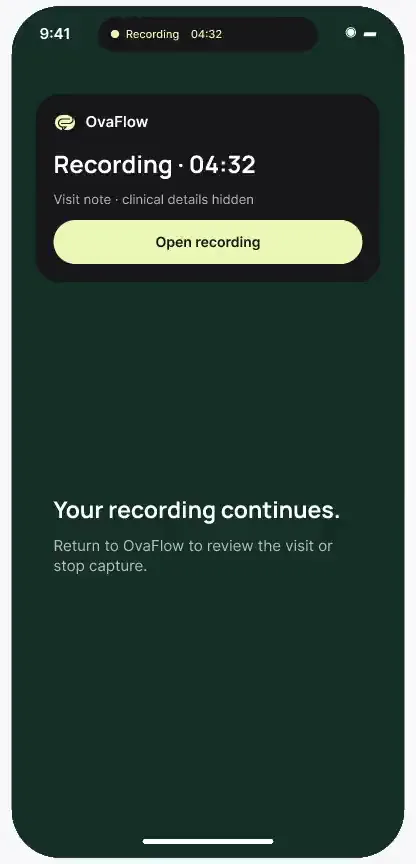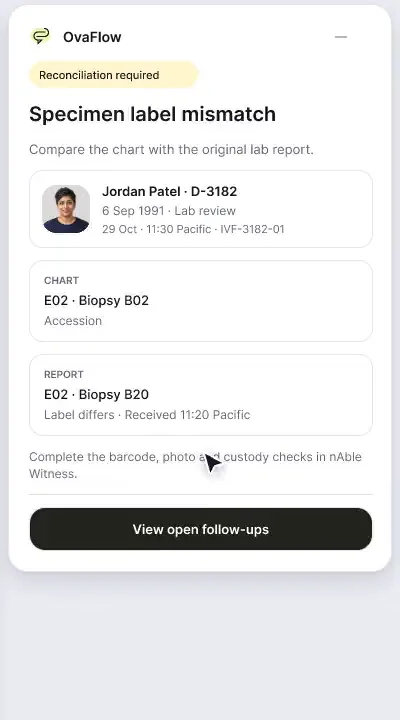
nAbleIVF: allergy check, monitoring note, save check, specimen stop
A patient-reported penicillin rash is surfaced against the chart, a monitoring note is confirmed saved rather than assumed, and a specimen label mismatch stops review.
Product preview · Fictional patient data
Walkthrough 7 of 29 · Windows
A floating companion designed to dock away from Save buttons, stay out of keyboard focus, ask before listening, and let staff practice outside any chart.
Windows companion: docking, audio setup, practice and call capture, muted recording of the design prototype. Fictional patient data.
Chapter 1 of 10: A pill that stays out of the way
Recorded from an interactive design prototype. Every patient, clinician and clinic is fictional, EMR screens are modeled reconstructions, and nothing shown is a live connection to any clinic or vendor system.
Clinical & operational context
On a Windows workstation, the companion starts as a small pill and opens into a 384-pixel rail. Staff test the microphone, choose a dock edge, set quiet call prompts and practice dictation outside any chart. A patient call is captured only after the encounter and consent are confirmed, and the draft is checked against the transcript before placement.
Fertility coordinators and nurses spend hours each afternoon on Windows workstations fielding patient phone calls, dictating callback summaries, and switching across EMR windows, scheduling grids, and pharmacy portals. Traditional floating widgets often cover critical EMR fields, steal keyboard focus mid-typing, or begin recording audio before patient consent and chart context are established.
This walkthrough demonstrates the Windows desktop companion in its two lightweight postures: a compact floating pill that stays out of the way of the active window, and a docked left-edge rail. It walks through microphone and audio verification, quiet click-first call prompts, a sandboxed practice mode outside any patient chart, focus-safe dictation that never hijacks the active cursor, explicit patient consent before call capture, pausing and reviewing a captured draft against the line-by-line transcript, and reviewing a mobile phone draft back at the workstation.
Nora Ruiz, RN
Checks mic setup or uses practice mode outside charts
Nora Ruiz, RN
Confirms patient identity and verbal consent first
Nora Ruiz, RN
Captures call with pause control and live indicator
Nora Ruiz, RN
Checks draft against transcript before EMR placement
How call capture and dictation work on a Windows workstation without stealing keyboard focus or skipping patient consent.
Guardrail: Recording requires explicit consent first, and every generated summary is checked line by line against the transcript before placement.
What to watch for
On a Windows workstation, the companion starts as a small pill and opens into a 384-pixel rail. Staff test the microphone, choose a dock edge, set quiet call prompts and practice dictation outside any chart. A patient call is captured only after the encounter and consent are confirmed, and the draft is checked against the transcript before placement.
Follow the exact timestamps, UI status changes, and coordination safeguards as the recording plays.
What to watch for: The compact floating pill sits cleanly above the Windows taskbar without obscuring EMR tables.
Boundary rule: The pill never expands over active clinical fields unless clicked.
On-screen narration: The companion starts as a small pill at the bottom right of the Windows desktop, clear of EMR controls. The pill expands into the compact workspace rail.
What to watch for: Audio input levels and headset selection are checked before a call begins.
Boundary rule: Hardware readiness is confirmed upfront so calls are not lost to a muted input.
On-screen narration: Workstation preferences open. Microphone and call audio inputs are checked. The microphone level test completes. The dock position is switched to keep clear of EMR controls.
What to watch for: Incoming call prompts appear quietly and wait for a deliberate click.
Boundary rule: No pop-up steals keyboard focus while a nurse is typing in another window.
On-screen narration: Quiet call prompts are set up for Teams and Zoom. Click-first control is shown, with the optional global shortcut left unassigned. The click-only preference is confirmed.
What to watch for: Staff can rehearse dictation and call capture in a dedicated practice mode outside any patient chart.
Boundary rule: Training and microphone testing never touch real or modeled patient records.
On-screen narration: A practice dictation runs outside any patient chart. The practice readout confirms nothing was written to the EMR. Setup completes and the companion workspace returns.
What to watch for: With one click, the floating pill docks neatly to the left edge of the Windows screen.
Boundary rule: Workstation layout adapts to narrow or single-monitor clinic desks.
On-screen narration: Preferences reopen to dock on the left edge. The dock position selector returns. The pill previews on the left edge of the desktop. The compact workspace reopens from the left-edge pill.
What to watch for: Dictation composes inside the companion buffer without moving the Windows cursor.
Boundary rule: Focus-safe dictation prevents accidental keystrokes inside background EMR forms.
On-screen narration: Named-field dictation starts without taking keyboard focus from the EMR. The dictated text is reviewed before it is placed.
What to watch for: Before call capture starts, the nurse confirms the patient on the line and records consent.
Boundary rule: Audio capture cannot begin until the consent step is completed.
On-screen narration: A quiet prompt appears for an incoming patient call. Maya Chen's encounter and her explicit consent to record are confirmed. With more than one appointment that day, the encounter is chosen explicitly. Call capture is tied to Maya Chen's consultation encounter. Consent and audio readiness are checked before capture starts.
What to watch for: During the call, a clear recording badge and instant Pause button remain in view.
Boundary rule: Staff can pause capture at any moment for sensitive or off-record remarks.
On-screen narration: Call notes are captured in the compact capture rail. The live visit-note workspace expands. Listening pauses for an off-record moment. The visit ends and the structured draft is reviewed.
What to watch for: After the call, the structured draft is inspected alongside the timestamped transcript.
Boundary rule: Nothing is placed into the chart until staff verify the draft against the source transcript.
On-screen narration: The draft's wording is compared against the transcript. The checked wording is kept ready for EMR placement.
What to watch for: A note captured earlier on the clinic iPhone arrives in the desk queue for final review.
Boundary rule: Mobile captures wait at the desk as drafts rather than writing directly to the EMR.
On-screen narration: A hallway consultation draft from the clinician's phone arrives on the desktop for review before placement.
OvaFlow never makes the clinical call in these recordings. Physicians sign, the person taking a handoff accepts it, and the lab keeps its own holds. The companion tracks, checks and stops; staff decide.
In this walkthrough
Every patient, family member, clinician and clinic in these stories is fictional. Names, times and screens come from prototype walkthroughs, not from real care.
 Maya ChenPatient
Named or shown on screen. An EMR here is a modeled workflow example built for the prototype, not the vendor's own software. OvaFlow is designed to work beside these systems.
 Patient education & eConsent
 Microsoft TeamsClinician calls & collaboration
 Telehealth & consult calls
 Clinic workstation OS
Systems a clinic running this workflow often uses. They do not appear in this recording.
 Microsoft EdgeManaged browser
Third-party names and logos are trademarks of their respective owners, shown to illustrate systems commonly used in IVF clinics. No affiliation, endorsement or live integration is implied. nAbleIVF, eIVF and Artisan appear as modeled workflow examples.
Where this appears
This recording is part of these pages. Each one explains the step in more depth.
Questions & answers
What clinicians, coordinators, practice leaders, and patients ask when reviewing Walkthrough 7.
No. Prompts are click-first and non-focus-stealing so a nurse typing in the EMR never has keystrokes hijacked into another window.
Yes. The companion includes a practice mode outside any chart so staff can test microphone levels and dictation safely.
It syncs to the workstation companion as a pending draft where the clinician or nurse reviews it beside the EMR before placing it.
Related
A patient-reported penicillin rash is surfaced against the chart, a monitoring note is confirmed saved rather than assumed, and a specimen label mismatch stops review.
Beside a modeled Artisan view, the companion compares Dr. Priya Shah's approval with the unchanged Artisan fields, stops on Maya's open chart, and won't assume an update it didn't see.
A note isn't done until it's saved, a cycle doesn't start with prior authorization unresolved, dose changes go to eIVF's own e-prescribing, and a PGT label mismatch stops the review.
Counts at a glance on the Home Screen, no names on the Lock Screen, Face ID before details, and a recording indicator that stays visible.
Next step
We'll replay this flow against your roles and handoffs, using fictional records. Please don't send patient data.