Daily care: a changed trigger, the wrong chart and an unknown outcome
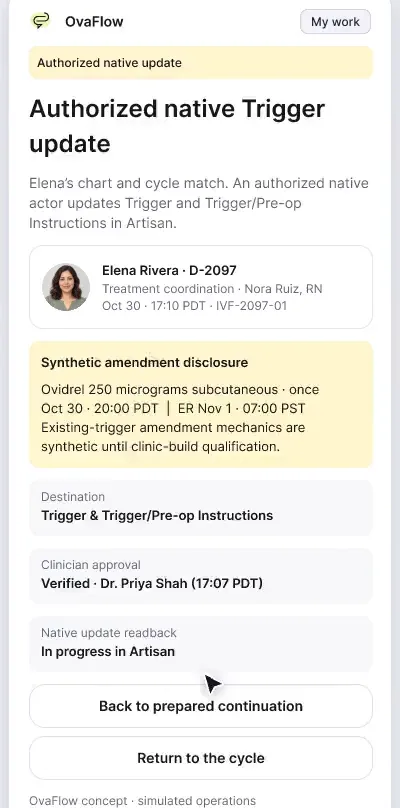
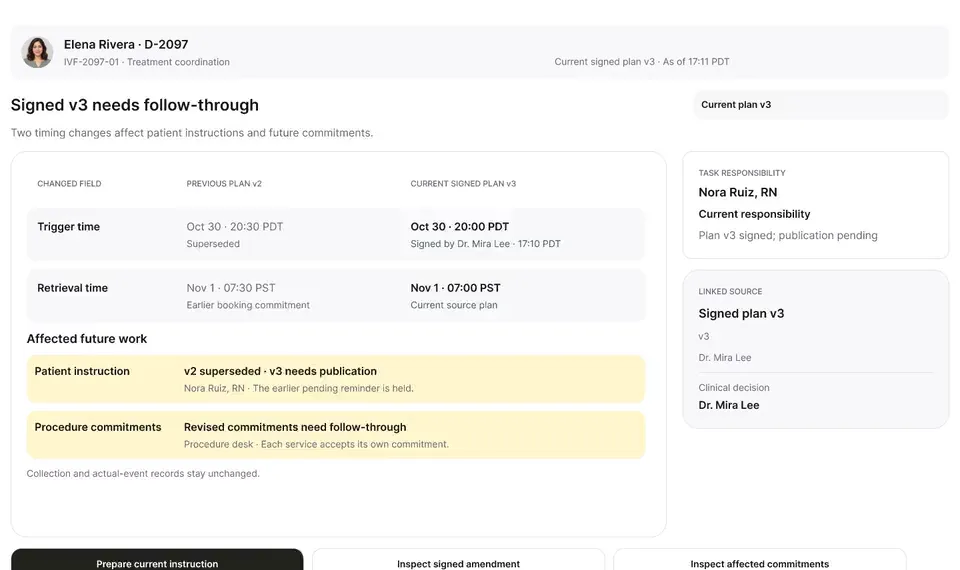
A late estradiol result, a newly signed trigger time, the wrong chart caught before publishing, and a lost confirmation checked rather than blindly resent.
Product preview · Fictional patient data
Walkthrough 8 of 29 · Desktop
Fourteen designed recovery states, from an unplugged headset to a blocked remote-desktop clipboard, each keeping the draft and the right patient.
Workstation failure and recovery catalog, muted recording of the design prototype. Fictional patient data.
Chapter 1 of 7: The headset unplugs
Recorded from an interactive design prototype. Every patient, clinician and clinic is fictional, EMR screens are modeled reconstructions, and nothing shown is a live connection to any clinic or vendor system.
Clinical & operational context
A tour of the ways a clinic workstation can fail mid-note, and how each one is handled. Disconnected microphones, changed charts, unverified saves, expired sessions and blocked remote-desktop transfers all hold the draft instead of losing it or forcing it into the wrong place.
Real clinic workstations fail in mundane ways every day: a USB headset gets bumped mid-dictation, a nurse clicks a different patient's tab while a draft is open, a clinic portal or EMR session times out over lunch, or a hospital Citrix/remote-desktop window blocks clipboard transfer. When tools hide these interruptions or discard partial work, staff either re-type notes from memory or accidentally paste Patient A's draft into Patient B's chart.
This walkthrough tests seven workstation failure and recovery states in sequence: an unplugged headset mid-capture, a patient chart switch while a draft is open, saves and sends whose outcome has not yet been verified, an expired authentication session, a remote-desktop boundary that blocks direct field transfer, step-by-step recovery of an interrupted capture, and preservation of every partial draft segment.
Workstation audio
Headset unplugs at 00:04; capture pauses cleanly
OvaFlow safeguard
Different patient opens while Elena's draft is active
OvaFlow companion
Detects expired session or remote-desktop block
Nora Ruiz, RN
Resumes preserved segments and verifies save
How OvaFlow handles hardware disconnects, mid-draft chart switches, session timeouts, and remote-desktop boundaries.
Guardrail: Every partial audio and text segment is preserved, and switching patients mid-draft locks the draft to its original patient.
What to watch for
A tour of the ways a clinic workstation can fail mid-note, and how each one is handled. Disconnected microphones, changed charts, unverified saves, expired sessions and blocked remote-desktop transfers all hold the draft instead of losing it or forcing it into the wrong place.
Follow the exact timestamps, UI status changes, and coordination safeguards as the recording plays.
What to watch for: When the headset unplugs mid-sentence, capture pauses immediately and preserves the recorded audio up to that second.
Boundary rule: Hardware loss never corrupts or discards the existing recording.
On-screen narration: A USB microphone disconnects mid-visit. The audio already captured is kept.
What to watch for: Switching the browser to another patient while a draft is open triggers a patient-mismatch banner.
Boundary rule: A draft started for Elena Rivera remains locked to Elena Rivera.
On-screen narration: The active patient changes mid-draft, so placement is blocked. The target field changes, so the destination has to be confirmed again.
What to watch for: Items whose save or send response did not return appear in a dedicated 'Unverified outcome' section.
Boundary rule: Unverified actions are separated from both 'To do' and 'Done'.
On-screen narration: The save in the EMR isn't verified yet, so the task stays open. A monitoring cycle-sheet save is unverified, so the task isn't closed quietly. A previous visit is still paused, so the two encounters don't mix. A portal message send is unverified, so a duplicate resend is held.
What to watch for: An expired workstation session prompts re-authentication without wiping the in-progress draft.
Boundary rule: Session expiry never erases unsaved clinical coordination work.
On-screen narration: The eIVF session expires. The draft is kept through sign-in.
What to watch for: When a remote-desktop window blocks direct field placement, the companion explains why and offers verified step-by-step copy/check controls.
Boundary rule: Technical boundaries are surfaced honestly rather than failing silently.
On-screen narration: A remote desktop blocks text transfer. The remote window's connection and clipboard policy are shown. The reviewed draft stays in OvaFlow until the local session resumes.
What to watch for: After reconnecting audio, the nurse resumes the interrupted capture from the exact pause point.
Boundary rule: Interrupted recordings stitch cleanly with visible segment markers.
On-screen narration: Capture is interrupted unexpectedly, and the partial audio is recovered. The recovered partial transcript and notes are reviewed.
What to watch for: The recovery list shows every preserved partial draft with its patient tag and timestamp.
Boundary rule: No partial note is silently deleted in the background.
On-screen narration: Partial drafts are kept together in one place, designed so that nothing captured is thrown away.
OvaFlow never makes the clinical call in these recordings. Physicians sign, the person taking a handoff accepts it, and the lab keeps its own holds. The companion tracks, checks and stops; staff decide.
In this walkthrough
Every patient, family member, clinician and clinic in these stories is fictional. Names, times and screens come from prototype walkthroughs, not from real care.
Named or shown on screen. An EMR here is a modeled workflow example built for the prototype, not the vendor's own software. OvaFlow is designed to work beside these systems.
 Modeled workflow exampleFertility EMR & practice management
 Modeled workflow exampleFertility EMR & practice suite
 Microsoft TeamsClinician calls & collaboration
eIVF: V6 reference.
Systems a clinic running this workflow often uses. They do not appear in this recording.
 Clinic workstation OS
 Virtual desktop & remote app host
Third-party names and logos are trademarks of their respective owners, shown to illustrate systems commonly used in IVF clinics. No affiliation, endorsement or live integration is implied. nAbleIVF, eIVF and Artisan appear as modeled workflow examples.
Where this appears
This recording is part of these pages. Each one explains the step in more depth.
Questions & answers
What clinicians, coordinators, practice leaders, and patients ask when reviewing Walkthrough 8.
OvaFlow pauses capture the instant the audio input drops, saves the segment captured so far, and lets you switch microphones and resume without losing the first half of the call.
No. The draft stays bound to the original patient and displays a mismatch stop until you return to that patient's chart.
When direct field placement is blocked by a remote-desktop boundary, OvaFlow shows that constraint explicitly and provides structured field-by-field review rather than pretending placement succeeded.
Related
A late estradiol result, a newly signed trigger time, the wrong chart caught before publishing, and a lost confirmation checked rather than blindly resent.
Beside a modeled Artisan view, the companion compares Dr. Priya Shah's approval with the unchanged Artisan fields, stops on Maya's open chart, and won't assume an update it didn't see.
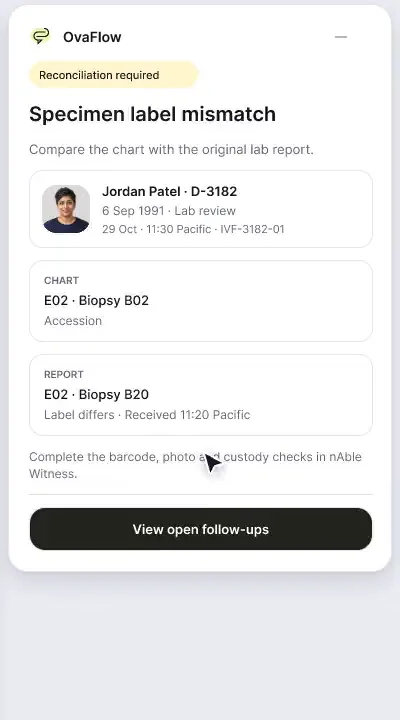
A patient-reported penicillin rash is surfaced against the chart, a monitoring note is confirmed saved rather than assumed, and a specimen label mismatch stops review.
Next step
We'll replay this flow against your roles and handoffs, using fictional records. Please don't send patient data.