Windows companion: docking, audio setup, practice and call capture
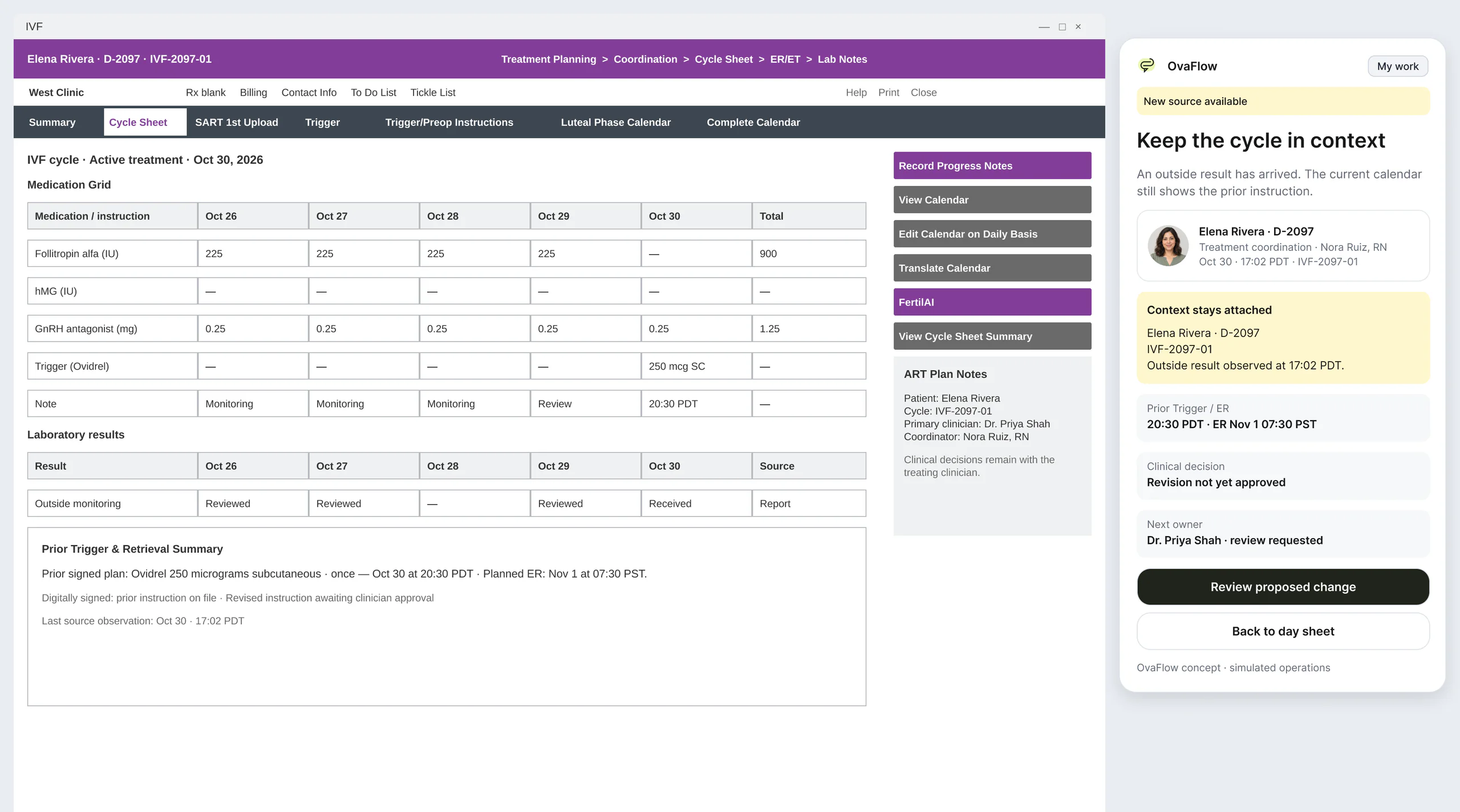
A floating companion designed to dock away from Save buttons, stay out of keyboard focus, ask before listening, and let staff practice outside any chart.
Product preview · Fictional patient data
Surfaces
The clinic workstation, a clinician's iPhone and wrist, the Lock Screen and the patient's own phone all show the same task, owner and next step. Move the cycle day and watch them change together.
 Elena Rivera
Trigger dayBased on a recorded prototype stateA timed injection finishes egg maturation, so the retrieval about 36 hours later lines up.
Five surfaces
Each surface does one job well. Each carries a plain maturity label, so you always know what is in the first pilot and what is still a design prototype.
Same rules
A smaller screen never means a looser rule. These are the safeguards each surface shows in the prototype walkthroughs.
| Safeguard | Desktop & Windows | iPhone (clinician) | Apple Watch | Widgets & Live Activities | Patient companion |
|---|---|---|---|---|---|
| Consent before the micThe patient, the encounter and consent are confirmed before any listening begins. | Shown on Desktop & Windows | Shown on iPhone (clinician) | Not shown on Apple Watch | Not shown on Widgets & Live Activities | Not shown on Patient companion |
| Kept until receivedA draft or recording stays where it is until the next device confirms it arrived. | Not shown on Desktop & Windows | Shown on iPhone (clinician) | Shown on Apple Watch | Not shown on Widgets & Live Activities | Not shown on Patient companion |
| Recording is always visibleA clear indicator stays on screen while capture runs, and pause is always one step away. | Not shown on Desktop & Windows | Not shown on iPhone (clinician) | Shown on Apple Watch | Shown on Widgets & Live Activities | Not shown on Patient companion |
| Private by defaultLock Screen and lowered-wrist views hide patient names; details appear only after unlocking. | Not shown on Desktop & Windows | Not shown on iPhone (clinician) | Shown on Apple Watch | Shown on Widgets & Live Activities | Not shown on Patient companion |
| Wrong-chart stopIf the open chart isn't the patient the work belongs to, placement stops and the draft is kept. | Shown on Desktop & Windows | Not shown on iPhone (clinician) | Not shown on Apple Watch | Not shown on Widgets & Live Activities | Not shown on Patient companion |
| Save checkText placed in the EMR isn't treated as saved until the EMR shows it. | Shown on Desktop & Windows | Not shown on iPhone (clinician) | Not shown on Apple Watch | Not shown on Widgets & Live Activities | Not shown on Patient companion |
| Safeguard | Desktop & Windows | iPhone (clinician) | Apple Watch | Widgets & Live Activities | Patient companion |
|---|---|---|---|---|---|
| Protected window guardWhen a remote desktop or protected window blocks text transfer, the draft is held instead of forced in. | Shown on Desktop & Windows | Not shown on iPhone (clinician) | Not shown on Apple Watch | Not shown on Widgets & Live Activities | Not shown on Patient companion |
| Read is not acceptSeeing or reading a handoff never transfers responsibility. Only an explicit accept does. | Not shown on Desktop & Windows | Shown on iPhone (clinician) | Not shown on Apple Watch | Not shown on Widgets & Live Activities | Not shown on Patient companion |
| Decline keeps the ownerIf an offer is declined or expires, the original owner stays responsible, so there is never a gap. | Not shown on Desktop & Windows | Shown on iPhone (clinician) | Not shown on Apple Watch | Not shown on Widgets & Live Activities | Not shown on Patient companion |
| Old links open the current instructionA link to an older instruction opens the current signed version instead. | Not shown on Desktop & Windows | Not shown on iPhone (clinician) | Not shown on Apple Watch | Not shown on Widgets & Live Activities | Shown on Patient companion |
| Reports kept as saidA patient's report keeps their words and both the reported and received times, and never rewrites the signed instruction. | Not shown on Desktop & Windows | Not shown on iPhone (clinician) | Not shown on Apple Watch | Not shown on Widgets & Live Activities | Shown on Patient companion |
| Urgent help, one tap awayRecovery check-ins show the clinic's 24/7 line and 911, with no automated symptom advice. | Not shown on Desktop & Windows | Not shown on iPhone (clinician) | Not shown on Apple Watch | Not shown on Widgets & Live Activities | Shown on Patient companion |
| Respectful prompt pauseAfter a loss or a chosen pause, routine and celebratory reminders stop. | Not shown on Desktop & Windows | Not shown on iPhone (clinician) | Not shown on Apple Watch | Not shown on Widgets & Live Activities | Shown on Patient companion |
What exists
The walkthroughs on this page are recordings of an interactive design prototype with fictional patients. The cycle-day scrubber above illustrates the same rules on days the prototype does not record. Here is where each surface sits.
In the first pilot plan, Windows first. EMR operations are tested in each clinic first.
Planned after the pilot, as a responsive web surface first.
Designed and walked through as prototypes. Separate iPhone and Watch apps are a later, separately justified step.
Interactive sandboxClickable daily-care and Artisan workstations with fictional data. A simulation with no EMR connection.
Maturity labels used: In the first pilot, Planned after the pilot, Design prototype.
Walkthroughs
A floating companion designed to dock away from Save buttons, stay out of keyboard focus, ask before listening, and let staff practice outside any chart.
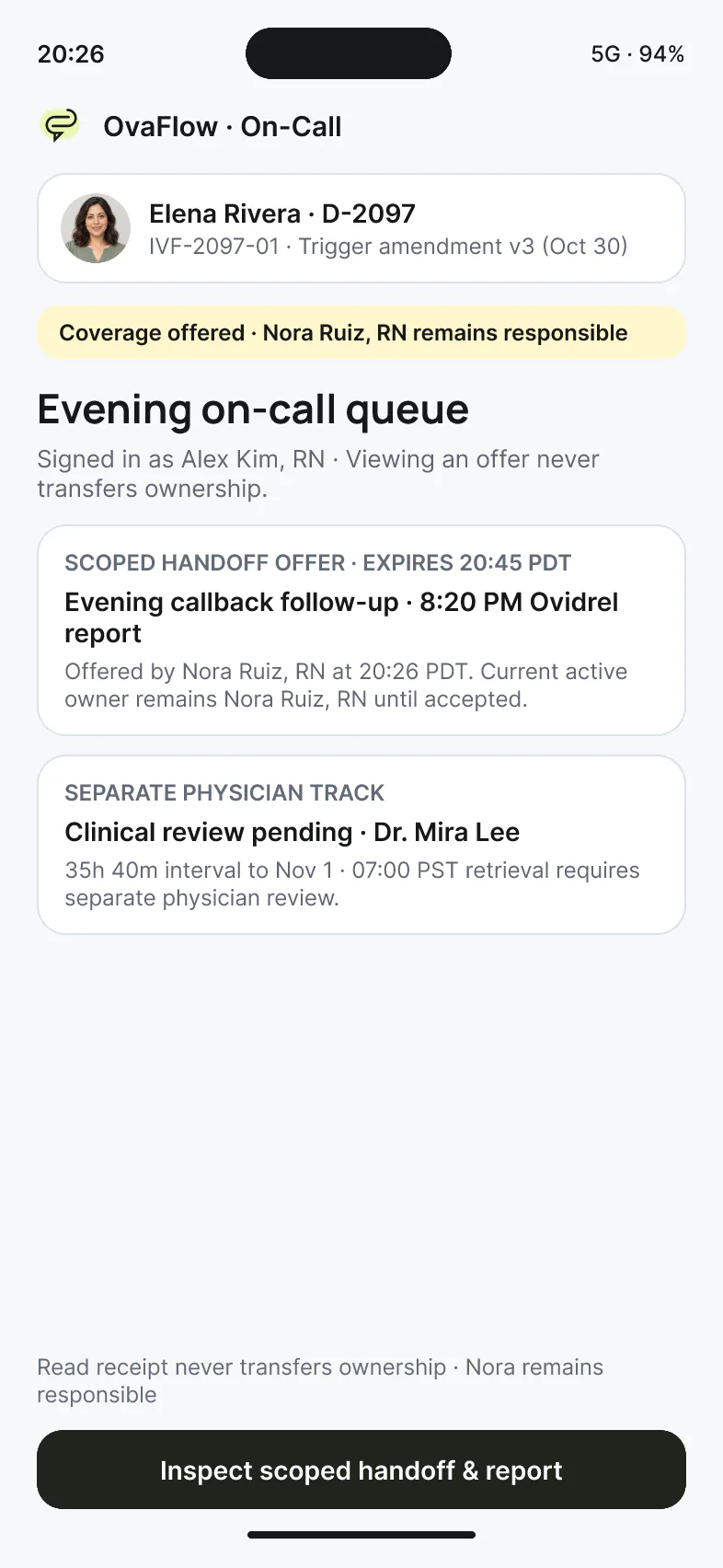
On the on-call phone, seeing a handoff isn't accepting it, declining leaves the original nurse responsible, and the physician's decision stays with the physician.
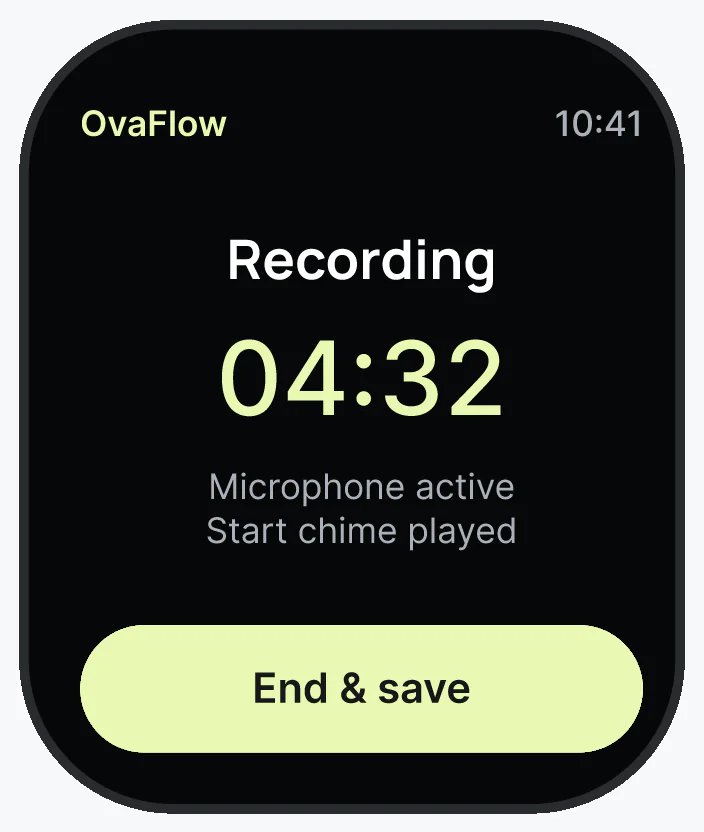
Between ultrasound rooms, a wrist note saves on the Watch first, says plainly where it is, and hides the patient's name when the wrist drops.
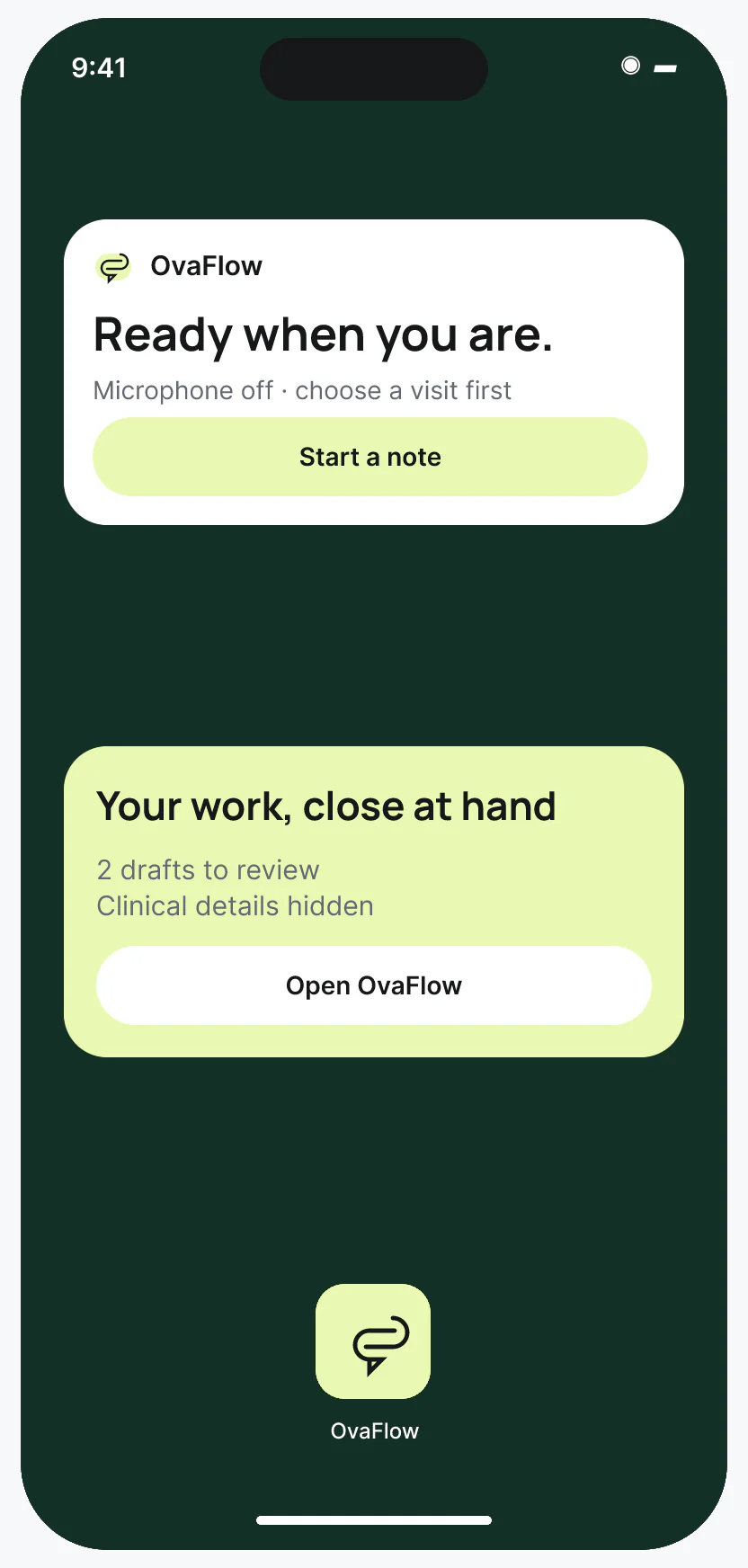
Counts at a glance on the Home Screen, no names on the Lock Screen, Face ID before details, and a recording indicator that stays visible.
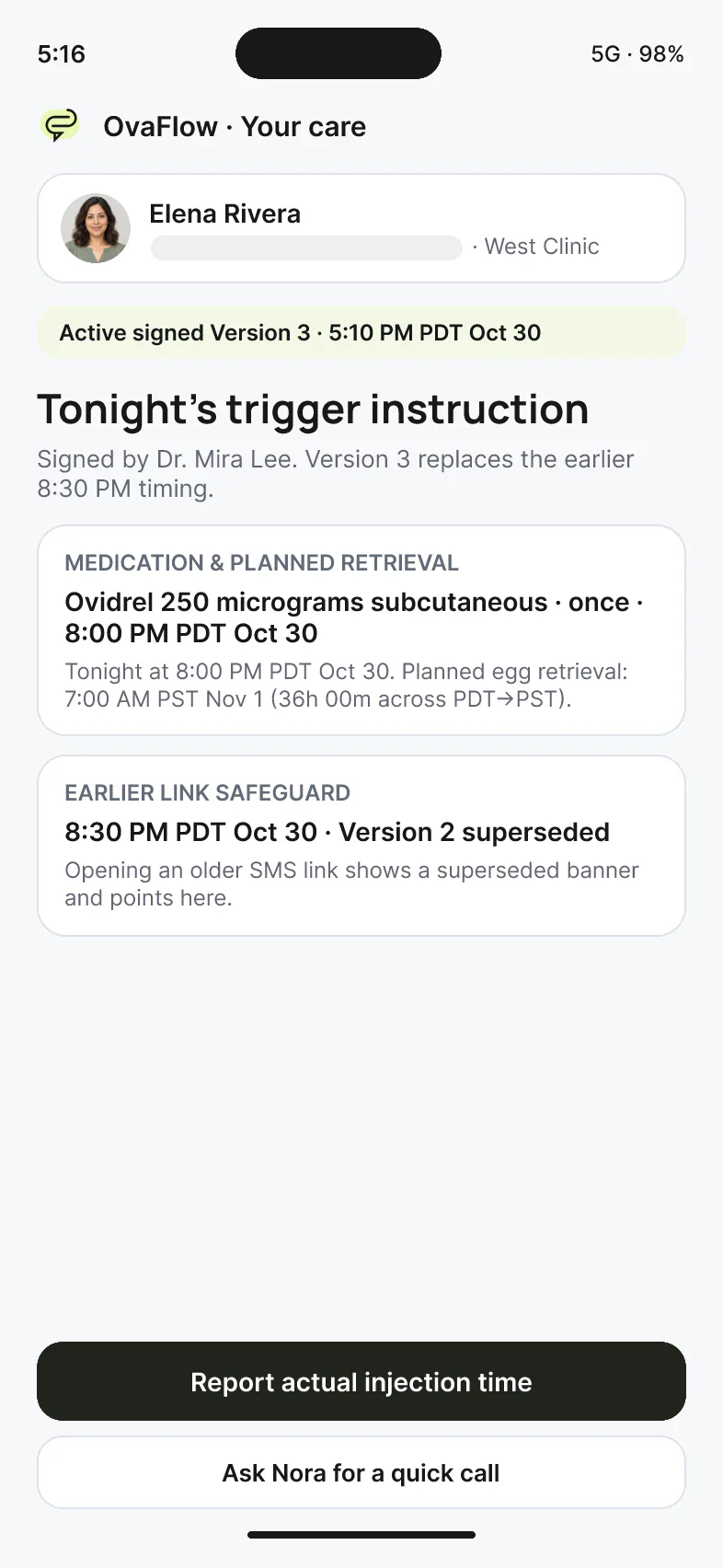
An old text link can't send Elena to a superseded injection time. Reporting a late dose is simple and honest, and urgent help is one tap away.
Cross-surface architecture
From a 45mm watch face to a 1728-pixel Windows workstation, each surface reveals only what fits its privacy context—and every chart edit stays at the desk.
Clinician screens use 24-hour time; patient screens use 12-hour AM/PM time with dates and timezone offsets · Zero patient names appear on locked screens, and every EMR save happens at the desk.
Between ultrasound rooms at West Clinic, Dr. Lee records a 38-second voice memo on Apple Watch. When her wrist drops in the hallway, the Always-On Display hides the patient's name [5].
Status reads “Saved on Watch” → “Transferred to iPhone” → “Draft ready at desk” (never “Saved in EMR”).
At the workstation, Dr. Lee signs Elena Rivera's trigger instruction v3 (20:00 PDT, replacing v2 at 20:30 PDT across the Nov 1 daylight-saving change to 07:00 PST retrieval). Nora verifies the save readback.
Desktop companion docks clear of the EMR Save button and verifies the chart update before releasing follow-ups [1].
Elena taps an earlier afternoon text link on her phone. The superseded link (8:30 PM) is blocked with a clear notice and redirects straight to signed v3 (Oct 30, 8:00 PM PDT).
Stale-revision block prevents confirming the outdated 8:30 PM time.
Elena takes her trigger injection 20 minutes after the target window and logs “Oct 30, 8:20 PM PDT” verbatim (received at 20:22 PDT) while asking for a nurse check-in.
Asking for a call does not mark the dose on time; the exact 8:20 PM PDT report and 20:00 PDT order appear side by side.
Nora offers the evening check-in at 20:26 PDT. On-call nurse Alex Kim, RN glances at the Lock Screen widget (redacted count only until Face ID [3]), opens the offer on iPhone, and explicitly accepts at 20:28 PDT.
Viewing is not accepting; scoped acceptance at 20:28 PDT moves the nursing callback to Alex Kim, RN while clinical order authority stays with Dr. Mira Lee.
| Surface & maturity | Primary role & setting | Visible when locked / wrist down | Visible when unlocked / raised | Allowed actions | Never happens here |
|---|---|---|---|---|---|
| Desktop & Windows (In the first pilot) | Nurse coordinators, physicians, lab & finance staff at a clinic workstation | Governed by Windows / Citrix workstation lock policy [1][2] | Full patient context, signed source, 384-pixel rail beside the chart, my-work queue and audit trail | Review sources, capture consented calls, place drafts in the open EMR and verify save readback | Never auto-saves into the EMR, never steals keyboard focus, never covers EMR Save buttons |
| iPhone for clinicians (Design prototype) | On-call nurses and physicians between rooms or after hours | Redacted notification banner; zero patient names on the Lock Screen [3] | On-call handoff offers, order vs. patient report compare, in-room consent capture, Watch draft review | Accept or decline on-call offers with a reason, record consented room audio, repair Watch draft destination | Opening an offer never accepts it; never edits EMR orders or sends prescriptions from the pocket |
| Apple Watch (Design prototype) | Physicians and nurses moving between ultrasound bays and procedure rooms | Always-On Display dims and hides the patient's name when the wrist drops [5] | Confirmed encounter label, active recording timer, and 3-stage transfer status (Watch → iPhone → Desk) | Confirm encounter, start/stop voice memo, inspect local retention status | Never displays full charts, never marks a note saved in the EMR, never discards audio on Bluetooth drop |
| Widgets & Live Activities (Design prototype) | Clinicians glancing at iPhone or Apple Watch between visits | Queue counts, active mic timer in Dynamic Island, and redacted placeholders on Lock Screen [3][4] | After Face ID: queue breakdown, “Saved in OvaFlow” vs. “Placed in EMR” state, and last-synced timestamp | One-tap launch into active recording or queue item after Face ID verification | Never shows patient names or cycle details on a locked screen; never mutates clinical state from a widget tap |
| Patient companion (Planned after the pilot) | Patients and intended parents on their own phone (responsive web default) | Standard phone lock privacy; reminders carry no clinical diagnosis on the lock banner | Current signed instruction pinned first, plain-language care-team status, dose log and pause controls | Confirm or report actual dose time (e.g., Oct 30, 8:20 PM PDT), request a nurse call, pause routine nudges | Older links cannot confirm superseded times; call requests never mark a dose taken; zero automated symptom advice |
Questions
In fertility care, ambiguity between “a note was recorded on a watch”, “a draft is sitting in OvaFlow” and “the note is saved in the EMR” causes dropped tasks or duplicate entries. Every surface uses the exact same eleven-state status dictionary so a nurse at the desk and a physician on call see the same truth.
Following Apple's WidgetKit, ActivityKit and watchOS Human Interface Guidelines, Lock Screen widgets and Live Activities redact patient names and cycle details by default until Face ID or Touch ID succeeds, and the Apple Watch Always-On Display hides the patient's name whenever the clinician's wrist drops.
No. Wrist and pocket surfaces capture voice notes, show the on-call handoff queue and allow scoped handoff acceptance or destination repair. Every chart placement, order signature and save check happens at the clinic workstation beside the open EMR.
Patients starting an IVF cycle already juggle portal logins, pharmacy apps and benefit trackers. A responsive web surface works immediately from a clinic link without requiring an App Store download, while still blocking superseded instruction links and routing urgent recovery questions to the clinic's 24/7 line and 911.
Desktop & Windows is in the first pilot. The Patient companion is planned after the pilot (during the pilot, patients continue using the clinic's existing portal and messaging channels), and the clinician iPhone, Apple Watch and Widgets & Live Activities concepts are design prototypes.
Microsoft Learn · Windows UI Automation (UIA) Accessibility Framework Overview (verified 2026-11-03)
Operating-system specification for inspecting desktop windows, control trees and keyboard focus on Windows.
Citrix Documentation · ICA Policy Settings — Client Clipboard Redirection (verified 2026-11-03)
Virtual desktop policy controls governing clipboard transfer between local endpoints and hosted clinical desktops.
Apple Developer Documentation · WidgetKit — Home Screen, Lock Screen & Smart Stack Privacy Redaction (verified 2026-11-03)
Apple framework documentation for glanceable widgets and privacy-sensitive Lock Screen redaction.
Apple Developer Documentation · ActivityKit & Human Interface Guidelines — Live Activities and Dynamic Island (verified 2026-11-03)
Design and system rules for Compact, Minimal and Expanded Dynamic Island and Lock Screen Live Activity views.
Apple Developer Documentation · Human Interface Guidelines — Designing for watchOS & Always-On Display (verified 2026-11-03)
Apple platform norms for wrist-raise interaction, Always-On Display dimming and redacting sensitive details when the wrist drops.
Next step
We'll walk one of your shifts across the desktop workspace, iPhone and Apple Watch designs. Fictional records only; please don't send patient data.