Guided tour
Mobile & Watch
Design prototypes for iPhone, Apple Watch and iOS widgets. Seeing a handoff isn't accepting it, consent comes before the microphone, notes stay where they are until the next device confirms them, and names stay off the Lock Screen. Each stop shows how mobile capture and on-call triage connect back to the clinic workspace without silent drops.
- Walkthroughs
- 5
- Running time
- 1:19
- For
- Physicians · Nurses
The iPhone, Apple Watch and widget experiences are design prototypes.
Watch the tour
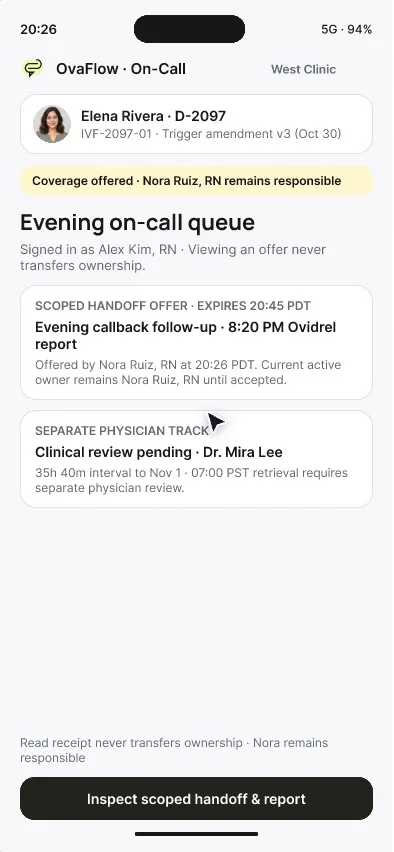
Walkthrough 1 of 5: On-call nurse iPhone: seeing isn't accepting, declining leaves no gap
On-call nurse iPhone: seeing isn't accepting, declining leaves no gap, muted recording of the design prototype. Fictional patient data.
Chapter 1 of 5: On call: seeing isn't accepting
Narrative arc & route map
Why these walkthroughs are sequenced together.
The on-call phone, in-room capture, wrist notes and private widgets.
The clinical & operational thread
Fertility care does not stay behind a desk. Physicians move from consult rooms to ultrasound bays to embryo transfer suites; nurses carry clinic iPhones on afternoon floor coverage and evening on-call shifts; and quick observations happen in hallways when hands are gloved. Designing mobile and wearable tools for reproductive medicine requires solving four problems: preventing 'seen notification = accepted handoff' confusion on call, keeping mobile recordings tied to explicit consent and resilient when the desktop computer is asleep, masks patient names on lowered wrists and locked screens, and never guessing words across a wireless audio drop.
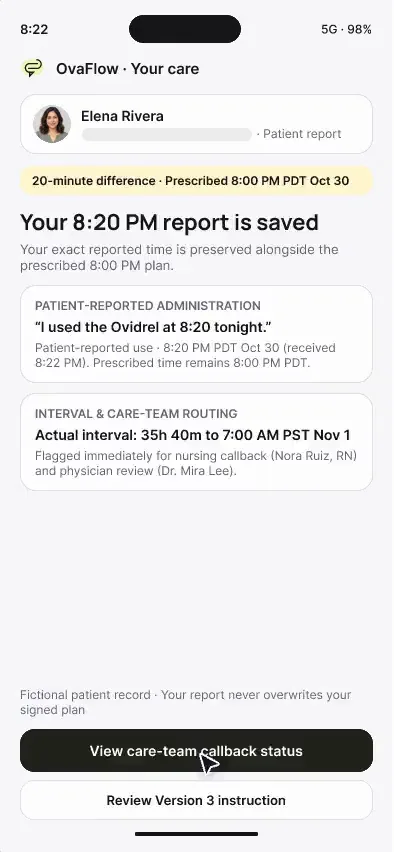
This five-stop tour (2:42 total) covers the complete mobile and wearable design prototype across iPhone, Apple Watch, Lock Screen widgets, Live Activities, and Dynamic Island. Stop 1 follows evening on-call nurse Alex Kim, RN on her iPhone as she reviews Elena Rivera's 20:00 PDT order and 20:20 PDT report, showing both decline and accept paths. Stop 2 enters the exam room on a clinician iPhone for consent-first visit capture, exam pause, and offline desk queuing. Stop 3 moves to the Apple Watch for local-first wrist capture and wrist-down name masking. Stop 4 inspects iOS Lock Screen widgets, Face ID gates, Dynamic Island, and offline indicators. Stop 5 pairs the Watch and iPhone to show how a 2-second audio gap is flagged explicitly rather than filled with guessed text.
Grounded in published clinical and safety guidance [13][14][18][19].
5-stop Mobile & Watch route: on-call iPhone, exam room capture, wrist memo, private widgets, and gap repair
- On-call iPhoneSeeing is not accepting
- Clinician iPhoneExam pause + Offline desk wait
- Apple WatchSaved on Watch + Wrist-drop mask
- iOS Widgets + WatchNo names on Lock Screen
- Paired iPhone + WatchExplicit audio gap marker
What OvaFlow coordinates across this tour
- Requires explicit acceptance on on-call iPhone handoffs and explicit patient consent before mobile visit capture.
- Saves Watch memos locally on the wrist first and queues iPhone drafts safely when the desktop workstation is offline.
- Masks patient names on Lock Screens, Dynamic Island, and lowered wrists, and marks audio drops as explicit gaps.
What stays with clinicians & the clinic's own systems
- Never shows patient names or diagnoses on a locked iPhone screen or lowered Apple Watch wrist.
- Never guesses or hallucinates clinical words across an interrupted audio segment.
- Never writes directly from a phone or Watch into the clinic EMR without desktop review and save verification.
The sequence
Every stop, in order.
Physicians and on-call nurses. Each walkthrough also has its own page with chapters, a full transcript and the pages it belongs to.
- 01
On-call nurse iPhone: seeing isn't accepting, declining leaves no gap
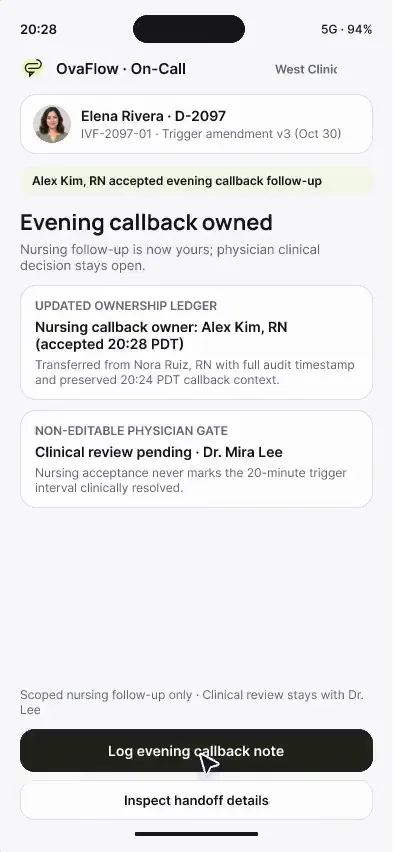
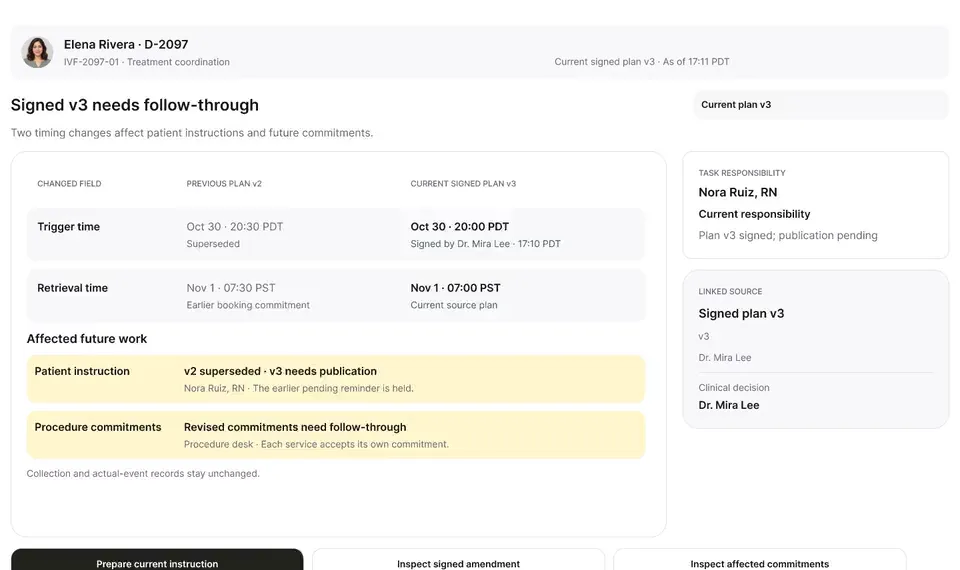
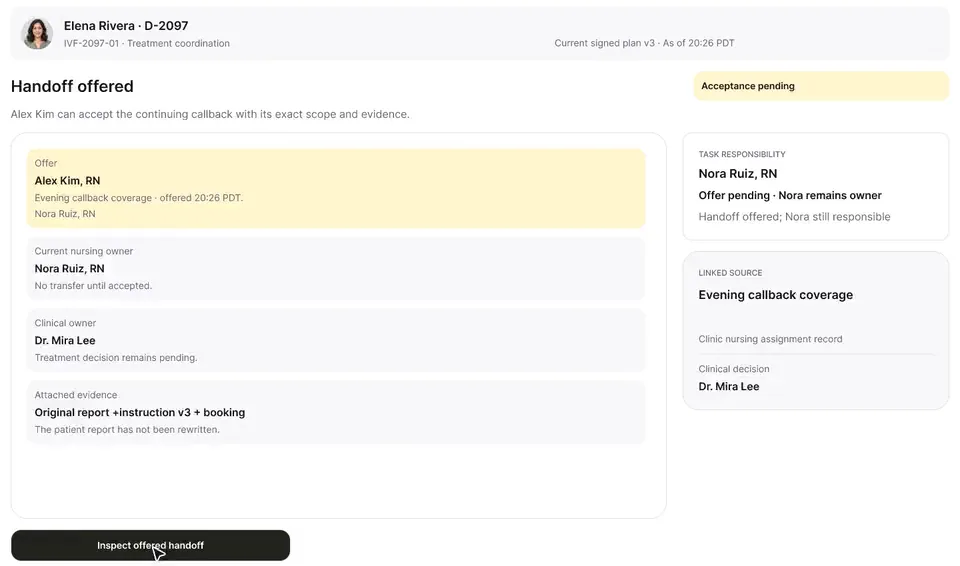
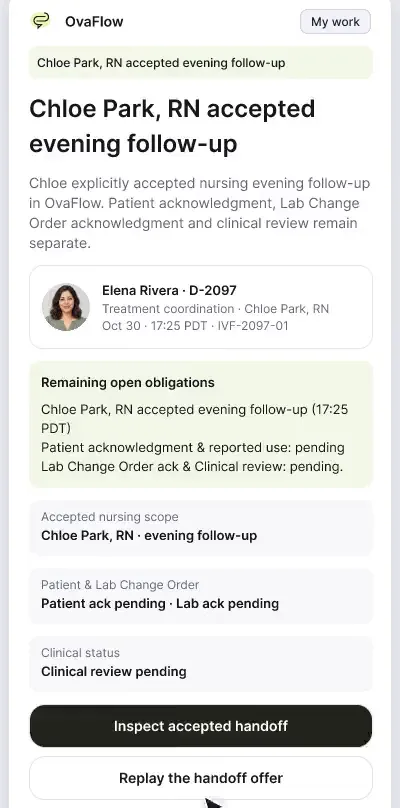
On the on-call phone, seeing a handoff isn't accepting it, declining leaves the original nurse responsible, and the physician's decision stays with the physician.
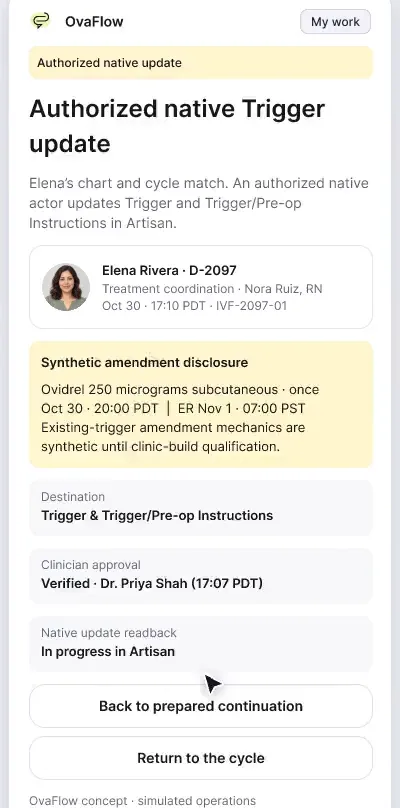
Opens with evening on-call nursing: seeing a handoff offer is not accepting it, declining keeps Nora Ruiz, RN responsible, and accepting scopes ownership to the nursing callback and syncs the note to the desk.
What to watch for & handoff to next stop
Watch for: Watch how the owner badge behaves on the Decline path versus the Accept path at 20:28 PDT.
Handoff: Moves from evening on-call triage to daytime in-room clinician capture on the iPhone in Stop 2.
- 02
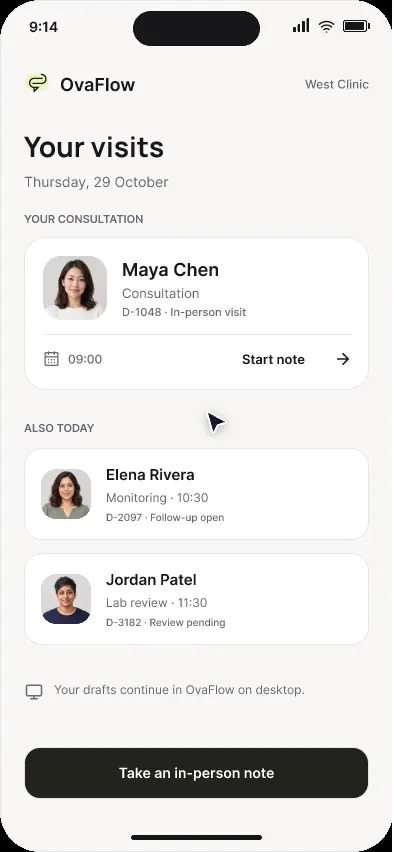
Clinician iPhone: in-room capture, consent and an offline desk
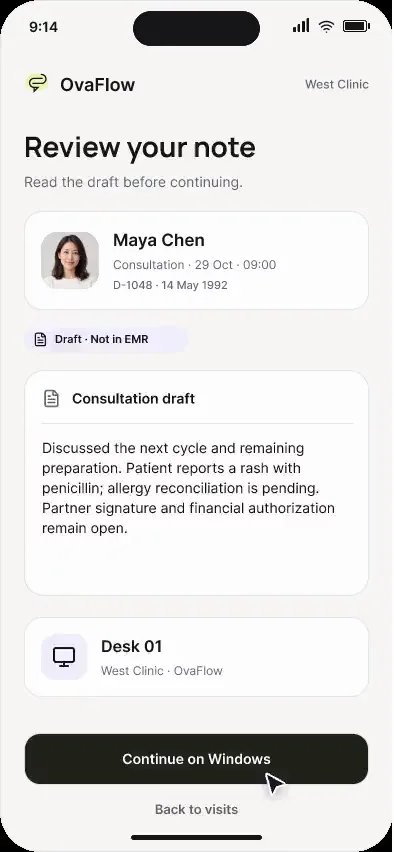
Confirm the patient and consent before the mic turns on, pause for the exam, and hand the draft to the desk even while the desk is offline.
Follows a clinician from today's iPhone schedule through explicit patient consent, visible recording with a one-tap pause for the physical exam, post-visit draft review, and safe queuing when the desktop computer is offline.
What to watch for & handoff to next stop
Watch for: Notice the 'Desk is offline — waiting' state at the end: the reviewed mobile draft stays safely queued on the phone until the workstation wakes.
Handoff: Shifts from in-room iPhone capture to hands-busy hallway capture on the Apple Watch in Stop 3.
Show stops 3–5 in this tour (3 more walkthroughs)
- 03
Apple Watch: wrist capture, offline retention and privacy
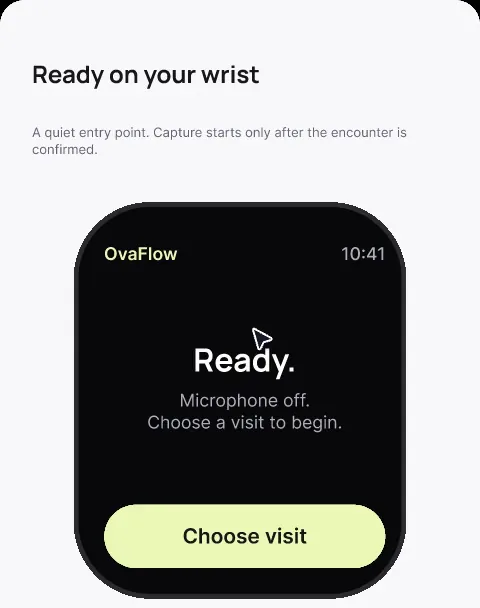
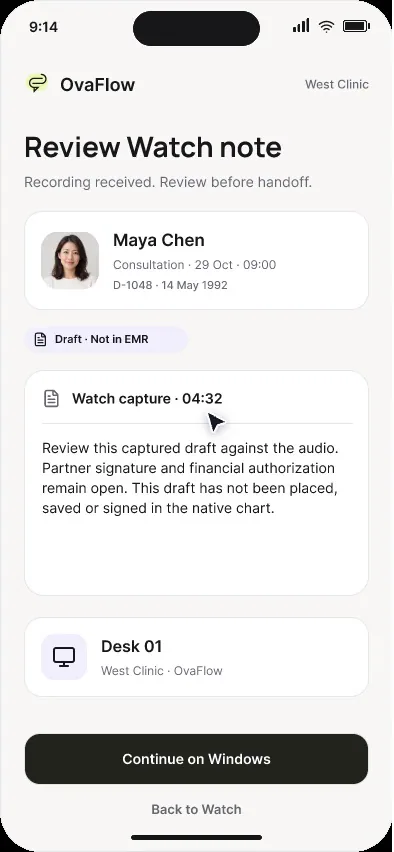
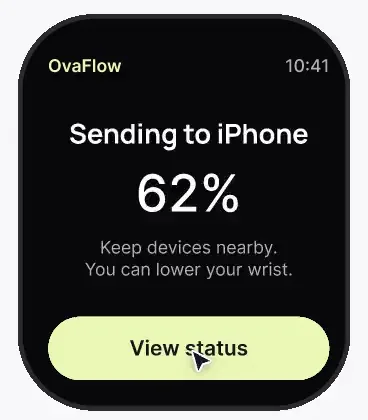
Between ultrasound rooms, a wrist note saves on the Watch first, says plainly where it is, and hides the patient's name when the wrist drops.
Demonstrates Apple Watch voice capture: visible recording indicator, saving to local Watch storage first, holding the memo when the iPhone is out of Bluetooth range, and hiding the patient's name when the wrist lowers.
What to watch for & handoff to next stop
Watch for: Watch the patient name disappear immediately when the wrist drops to ambient mode.
Handoff: Expands that ambient privacy principle across iOS Lock Screen widgets and Dynamic Island in Stop 4.
- 04
iOS widgets, Live Activity, Dynamic Island and Face ID
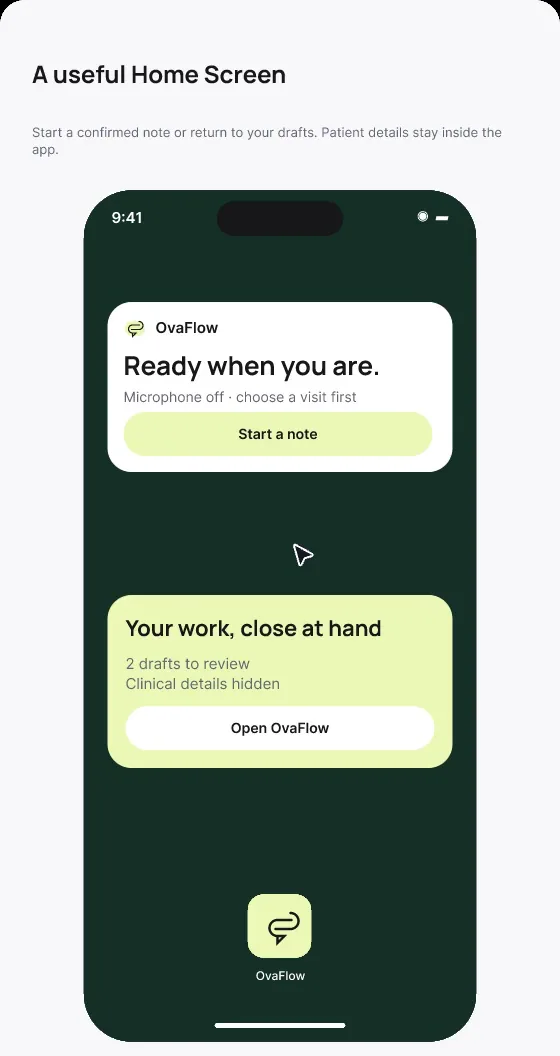
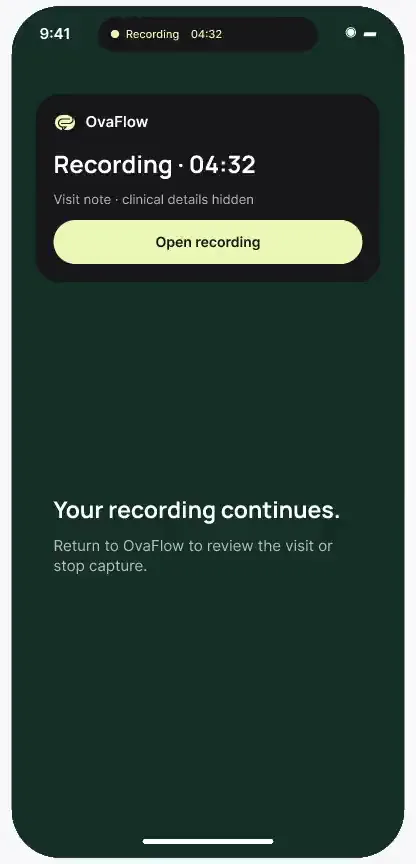
Counts at a glance on the Home Screen, no names on the Lock Screen, Face ID before details, and a recording indicator that stays visible.
Shows aggregate task counts on Lock Screen widgets, Face ID gating before patient details appear, neutral timers in Live Activities and Dynamic Island, Watch face complications, and honest offline indicators.
What to watch for & handoff to next stop
Watch for: Notice how an offline widget replaces stale task counts with an explicit offline timestamp so staff never trust an outdated '0 urgent' badge.
Handoff: Returns to the paired iPhone in Stop 5 to inspect a Watch recording that experienced a brief audio drop.
- 05
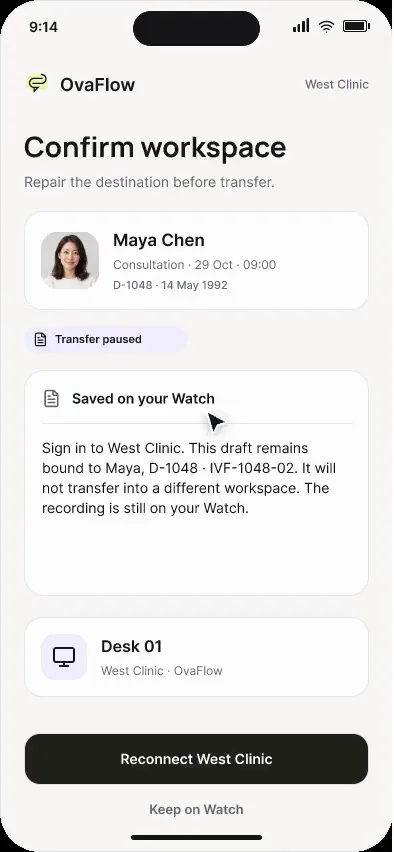
Paired iPhone: reviewing a wrist draft and repairing the workspace
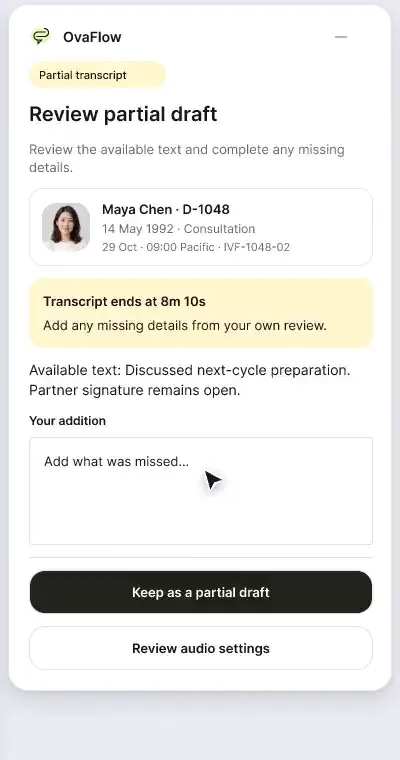
When Watch audio drops mid-note, the iPhone keeps what was captured, marks the gap, and reconnects the clinic workspace.
Closes the mobile tour by showing what happens when a Watch voice capture has a 2-second audio interruption: the paired iPhone marks the gap visibly for human completion instead of guessing words.
What to watch for & handoff to next stop
Watch for: Watch the inline gap callout get resolved by the clinician before the draft is forwarded to the workstation.
Handoff: Completes the Mobile & Watch tour.
Tour FAQ
Questions about the Mobile & Watch tour
Common questions from physicians and on-call nurses reviewing this sequence.
Are the iPhone, Apple Watch, and iOS widget experiences included in the initial clinic pilot?
The iPhone, Apple Watch, and widget experiences are design prototypes planned for phases following the initial desktop daily-care pilot.
Why doesn't the clinician iPhone save notes directly into the EMR?
Because fertility EMRs require placing notes into specific cycle sheets and verifying the saved record on the desktop screen. Mobile capture prepares and reviews the draft on the go, then hands it to the desk queue.
How does OvaFlow protect privacy when a nurse checks her iPhone Lock Screen in public?
Lock Screen widgets and Live Activities show only aggregate counts and neutral timers. Viewing any patient name or clinical detail requires Face ID authentication.
Other tours
Pick another path.
Executive overview
Practice leaders and medical directorsArtisan clinics
Clinics that run ArtisannAbleIVF & eIVF clinics
Clinics that run nAbleIVF or eIVF
Show 3 more guided tours (Workstation, messaging & recovery · Patient experience · Lab, cryo & pharmacy)
Next step
Seen the recordings? Walk it with us.
A guided walkthrough of the design prototype, paced around your questions and your team's day. Fictional records only; please don't send patient data.