Product preview · Fictional patient data

OvaFlow

Apple Watch

A note on the wrist that says where it is.

An Apple Watch concept for hands-busy moments between ultrasound bays and procedure rooms. Notes save on the Watch first, transfer to the paired iPhone when in range, and become an unsigned draft at the desk—never a direct write to the EMR.

Design prototype
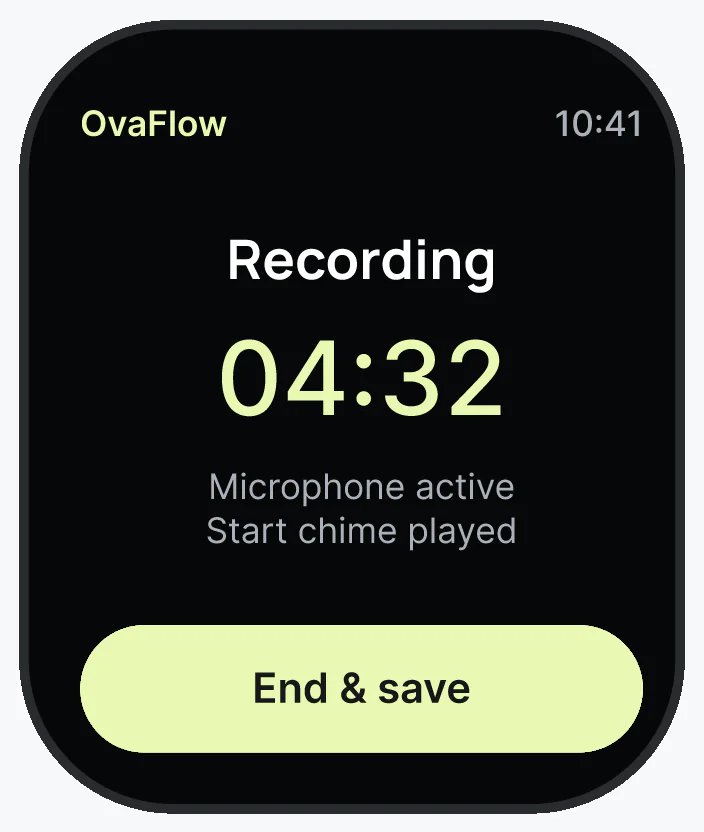
OvaFlow10:41Maya's visitRecording04:32Microphone activeEnd & save
Wrist raisedThe visit name and a visible recording state, for the clinician looking at it.
OvaFlow10:41Note in progress04:32Clinical details hidden. Raise wrist to open.Open recording
Wrist loweredThe always-on face hides the patient's name. The recording time stays, so nothing is captured unseen.
Wrist raised: name visible
Design prototype · Fictional patient data

What it's for

Made for hands-busy moments.

Wrist capture between rooms, honest about where the note is. Physicians moving between ultrasound and procedure rooms with their hands busy.

  1. Wrist capture

    Confirm the encounter on the raised wrist, record with a high-contrast indicator and elapsed timer, and save to local Watch storage first.

  2. Honest status

    Saved on Watch, transferred to iPhone and draft ready at the desk are three separate states that never collapse into a single checkmark.

  3. Private when lowered

    When the wrist drops, the watchOS always-on display dims and hides the patient's name and clinical context behind a redacted card.

Who it's designed for

Where is the note?

Three separate states, never blurred together.

Saved on the Watch, sending to the iPhone and preparing the draft are different facts, and each has its own finish line. The face says which one is true right now.

  1. OvaFlow10:41Saved on Watch04:32 retained locally. Waiting for your iPhone.Check transfer
    01 · Saved on Watch

    The audio is kept on the wrist first, so nothing is lost if the phone is out of range. It stays here until the iPhone confirms it has a copy. It is not yet a clinical note.

  2. OvaFlow10:41Sending to iPhone62%Keep devices nearby. You can lower your wrist.View status
    02 · Sending to iPhone

    The transfer shows its own progress. It is finished only when the iPhone confirms it received all of the audio.

  3. OvaFlow10:41Preparing noteUpload complete. We'll let you know it's ready.Check draft
    03 · Preparing the draft

    The upload is finished; the draft is not ready yet. The Watch says when it is, and the draft then waits for the clinician to review it in the clinical workspace.

Apple Watch companion (design prototype): choose a visit, record with a visible state, and save locally before transfer to the phone. Fictional patient data.
  1. Ready on the wrist. The microphone stays off until a visit is chosen.
  2. The visit and consent are confirmed on the paired phone before capture starts.
  3. A visible recording state with elapsed time and a deliberate stop.
  4. Saved on Watch means saved locally. It is not yet a clinical note.
Design prototype · Fictional patient data

The recorded prototype, from ready to saved: the microphone stays off until a visit is chosen, consent is confirmed on the paired phone, and capture shows a visible timer with a deliberate stop.

When things go wrong

Honest when the phone is far, the audio drops or the clinic is wrong.

  • OvaFlow10:41Saved offline1 recording on this Watch. It transfers when the iPhone is back in range.Check connection
    Phone out of reach

    Offline is never shown as a finished handoff. The recording stays on the Watch until the phone reconnects.

  • OvaFlow10:41Partial note saved03:08Recording interrupted. This recording has ended.Review partial
    Capture interrupted

    The usable audio is kept with its coverage marked. Starting again makes a new recording.

  • OvaFlow10:41Open your iPhoneWorkspace needs attention. Audio stays on this Watch.Fix destination
    Wrong destination

    A workspace mismatch is repaired on the paired iPhone. A note is never quietly sent to another clinic.

Device anatomy & visibility matrix

Apple Watch anatomy: wrist-raise capture, 3-hop storage & wrist-down privacy

Built around Apple's watchOS Human Interface Guidelines [5] for physicians moving between ultrasound bays and procedure rooms with gloves on or hands full. Every state tells the truth about where the voice memo lives and who can see the screen.

Design prototype · 45mm watchOS face with wrist-down Always-On Display redaction & 3-hop storage

Worked Apple Watch trace: hallway capture, wrist drop & paired recovery

The Apple Watch capture and paired-iPhone recovery walkthroughs follow Dr. Mira Lee recording a post-procedure observation on her wrist and repairing an interrupted transfer.

  1. 14:15:00 (24h)Dr. Mira Lee, MD

    State 01 · Wrist raised (Encounter confirmed)

    Stepping out of the ultrasound bay, Dr. Lee raises her wrist, confirms Maya Chen's encounter on the watch face, and taps Record.

    Screen boundary

    Visible amber microphone indicator and timer confirm active capture.

  2. 14:15:18 (24h)Dr. Mira Lee, MD

    State 02 · Wrist lowered in hallway (Always-On Display)

    While walking past the waiting area, Dr. Lee lowers her arm. The watch screen dims and hides Maya Chen's name behind a redacted card while recording continues [5].

    Screen boundary

    watchOS Always-On privacy redaction prevents bystanders from reading patient names on a lowered wrist.

  3. 14:15:42 (24h)Apple Watch local storage

    State 03 · Hop 1 (Saved on Watch)

    Dr. Lee taps Finish while her iPhone is still in her coat pocket down the hall. The watch saves the audio locally and displays “Saved on Watch · waiting for iPhone”.

    Screen boundary

    Zero audio loss when Bluetooth is out of range; status never claims the desk has the note yet.

  4. 14:22:10 (24h)Paired iPhone → Desk workspace

    State 04 · Hop 2 & Hop 3 (Transferred & ready at desk)

    When the watch reconnects to the iPhone, the audio transfers (Hop 2) with a 4-second interruption clearly bracketed, then lands at the desk as an unsigned draft (Hop 3).

    Screen boundary

    Three distinct states prevent assuming a wrist memo has been charted in the EMR.

Apple Watch state & privacy flow. Raising the wrist confirms the encounter and starts capture; lowering the wrist in the hallway dims the screen and hides the patient's name [5]; and three distinct storage hops track the note from Watch to iPhone to Desk.
Visibility table, explicit boundaries & glossaryWhat shows where on Apple Watch & what never happens on Apple WatchSub-surface visibility table, what Apple Watch does and never does, and related safeguard terms.
What shows where on Apple Watch
Sub-surface / stateWhat is shownWhat is hidden or redactedAllowed actionStays at the desk or EMR
Pre-capture encounter check (wrist raised)Scheduled room/encounter label and a single high-contrast “Confirm & Record” control.No recording starts from an accidental cuff brush; encounter must be confirmed first.Confirm the patient encounter and start a hands-busy voice memo.Full flowsheet history, hormone tables and order entry.
Active recording · Wrist raisedPatient first/last name, amber recording ring, elapsed seconds, and Pause / Finish controls.Detailed chart identifiers stay off the small screen to keep glance legibility high.Speak brief post-ultrasound or post-procedure observations and tap Finish.Structured follicle table entry and clinical sign-off.
Active or recent note · Wrist lowered (Always-On Display) [5]Dimmed watchOS screen showing “Recording active” or “1 note saved” and elapsed time.Patient name and encounter details are replaced by privacy bars via watchOS redaction [5].Raise wrist to restore full view; no tap actions execute while dimmed.All clinical records remain at the desk.
Hop 1 → Hop 2 → Hop 3 transfer ladderThree separate chips: “Saved on Watch” → “Transferred to iPhone” → “Draft ready at desk”.Never shows a generic green checkmark that could be mistaken for “Saved in EMR”.See at a glance whether the note is still on the wrist or has reached the desk.Placing the draft into the EMR note field and verifying Save.
Out-of-range / interrupted capture edge stateAmber “Held on Watch (phone out of range)” or “Partial capture · gap marked” notice.Never discards the recorded audio prior to the interruption.Keep moving between rooms; audio syncs to the paired iPhone when back in range.Repairing the gap on iPhone/desk and saving in the chart.

Designed to do on Apple Watch

What belongs on this screen

  • Saves voice memos to local Apple Watch storage first so out-of-range hallways never lose a recording.
  • Separates “Saved on Watch”, “Transferred to iPhone” and “Draft ready” into three unmistakable states.
  • Hides the patient's name and clinical context on the watchOS Always-On Display whenever the wrist drops.
  • Preserves partial recordings and marks interrupted seconds explicitly for review on the paired iPhone.

Explicit boundary

What never happens on Apple Watch

  • Never shows patient names on a lowered wrist in Always-On Display mode.
  • Never collapses local Watch storage and EMR chart placement into a single “Done” badge.
  • Never writes, signs or saves anything directly into the clinic's EMR from the wrist.
  • Never silently drops or overwrites a recording when Bluetooth disconnects mid-note.

Questions

Common questions about Apple Watch

Frequently asked questions4 questions on Apple Watch privacy, boundaries and rollout timing
How does Apple Watch hide the patient's name when the clinician's arm drops?

In watchOS, apps can mark sensitive views with privacy redaction for the Always-On Display state. When the clinician lowers their wrist, watchOS dims the screen and replaces the patient's name and encounter details with neutral placeholder bars while keeping the recording indicator visible.

What happens if the clinician's iPhone is left in another room while recording on Apple Watch?

The voice memo records and saves directly to on-watch storage first, showing “Saved on Watch”. As soon as the clinician returns within Bluetooth or Wi-Fi range of the paired iPhone, the recording transfers to the phone and then prepares a draft for the desk.

Can a physician approve a trigger time or sign a note from Apple Watch?

No. A 45mm watch face cannot display the full hormone flowsheet, ultrasound measurements and source documents required for safe clinical sign-off. Apple Watch is strictly for hands-busy capture and glanceable status.

What is the maturity status of the Apple Watch surface?

It is a design prototype. Any watchOS extension would be built only in a later product phase after the desktop workstation pilot is established.

Platform standards & referencesPublic platform documentation cited on this page (2 verified sources)Apple Human Interface Guidelines, WidgetKit, ActivityKit, watchOS, Windows UIA and Citrix ICA documentation.
  1. [5]

    Apple Developer Documentation · Human Interface Guidelines — Designing for watchOS & Always-On Display (verified 2026-11-03)

    Apple platform norms for wrist-raise interaction, Always-On Display dimming and redacting sensitive details when the wrist drops.

  2. [3]

    Apple Developer Documentation · WidgetKit — Home Screen, Lock Screen & Smart Stack Privacy Redaction (verified 2026-11-03)

    Apple framework documentation for glanceable widgets and privacy-sensitive Lock Screen redaction.

In the walkthroughs

What you can watch it do.

Design prototype

Watch experiences are a separately justified extension of the same product model.

  1. Encounter confirmed before capture
  2. Saved on Watch, then on iPhone, then draft ready
  3. Offline retention until the phone reconnects
  4. Partial recovery with a clearly marked gap
  5. A private always-on state
  6. Never places or saves text directly into the EMR from the wrist

Walkthroughs

Apple Watch, recorded.

Recordings of the interactive design prototype with fictional patients. Open one to play it with chapters and captions.

Next step

See what fits on the wrist.

We'll walk through the Apple Watch design and what a nurse can do from a glance. Fictional records only; please don't send patient data.