Daily care: a changed trigger, the wrong chart and an unknown outcome
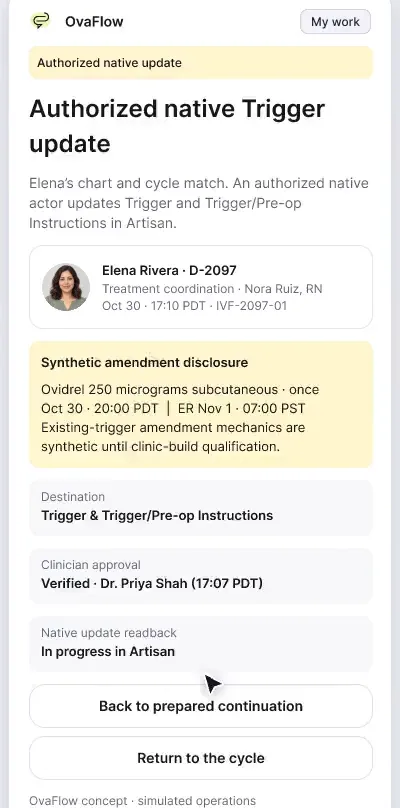
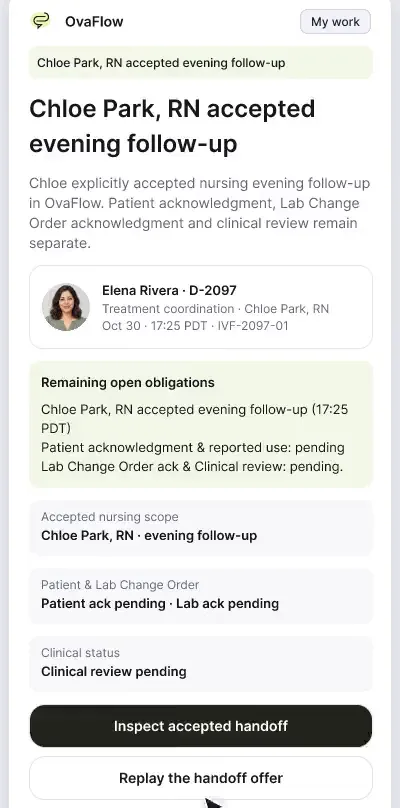
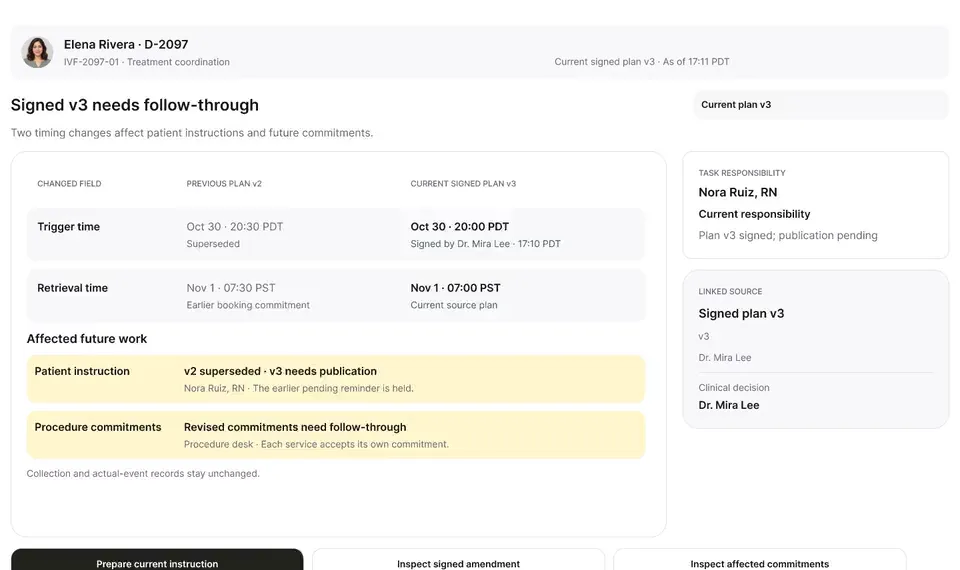
A late estradiol result, a newly signed trigger time, the wrong chart caught before publishing, and a lost confirmation checked rather than blindly resent.
Product preview · Fictional patient data
Walkthrough 9 of 29 · Desktop
Routine follow-through runs under rules your team sets, pauses on request, and re-checks the open chart before it resumes.
Always-on clinic workspace: routines people release, muted recording of the design prototype. Fictional patient data.
Chapter 1 of 7: The always-on workspace
Recorded from an interactive design prototype. Every patient, clinician and clinic is fictional, EMR screens are modeled reconstructions, and nothing shown is a live connection to any clinic or vendor system.
Clinical & operational context
The always-on workspace shows what the clinic's routines are doing and lets staff pause them for 15 minutes during a shared-screen review. Before anything resumes, the chart is confirmed again. Connections, microphone permissions and protected remote windows are shown honestly rather than failing silently.
Across a full clinic day, coordinators and nurses leave their desks for ultrasound rooms, procedure huddles, or lunch, and clinics often ask how background coordination routines, permissions, and shared monitors behave when staff step away. A workspace that keeps acting on stale chart context after a 15-minute break, or that tries to read a protected password or banking window on a staff computer, quickly loses clinical trust.
This walkthrough shows the full-screen always-on desktop workspace through a realistic shift rhythm: monitoring the live coordination queue, stepping away for a 15-minute pause, requiring an explicit chart re-check before resuming work, reviewing clinic-configured coordination routines that only fire when released by the team, inspecting microphone and window permissions, working completely without a microphone in keyboard/click mode, and automatically ignoring protected non-clinical windows.
Nora Ruiz, RN
Pauses workspace for 15 minutes during huddle
OvaFlow safeguard
Re-verifies open EMR chart before resuming actions
Care team
Reviews and releases queued follow-up routines
OvaFlow safeguard
Leaves protected or personal windows completely alone
How the desktop workspace manages breaks, team-released routines, non-microphone workflows, and protected windows.
Guardrail: Returning from a pause requires re-checking the active chart, and protected windows are never observed.
What to watch for
The always-on workspace shows what the clinic's routines are doing and lets staff pause them for 15 minutes during a shared-screen review. Before anything resumes, the chart is confirmed again. Connections, microphone permissions and protected remote windows are shown honestly rather than failing silently.
Follow the exact timestamps, UI status changes, and coordination safeguards as the recording plays.
What to watch for: The full-screen command center organizes open tasks, expected results, and active handoffs in one view.
Boundary rule: Every row shows its named owner, source timestamp, and current state.
On-screen narration: The always-on clinic workspace opens: “Your clinic, moving.” The Windows workstation's background readiness is shown.
What to watch for: Stepping away for 15 minutes puts the workspace into an explicit paused state.
Boundary rule: No background observation or placement runs while the workstation is paused.
On-screen narration: Companion routines pause for 15 minutes during a shared-screen review. Queued local tasks are held while work is paused.
What to watch for: On return, the workspace prompts a fresh check of the open chart before resuming.
Boundary rule: Stale pre-break chart context is never trusted automatically after an idle period.
On-screen narration: Before a queued action resumes, the chart has to be confirmed again. Back to the Today view. The workstation readiness card resumes before routines are reviewed.
What to watch for: Coordination routines (such as assembling morning monitoring follow-up lists) wait for a staff member to review and release them.
Boundary rule: Routines prepare drafts and queues; staff release them.
On-screen narration: Routine follow-through rules open; each one is released by a person. A completed routine shows its trail from release to delivery.
What to watch for: The permissions drawer shows exactly which audio and window capabilities are active.
Boundary rule: Staff can inspect and toggle capture permissions at any time.
On-screen narration: The Connections view shows the clinical apps and devices on this workstation. Workstation onboarding and hardware permissions are reviewed. When Windows sign-in autostart is off, manual launch is explained. Back to Connections. Workstation setup reopens to check the microphone permission.
What to watch for: With the microphone switched off, every queue, handoff, and readback workflow remains 100% operable.
Boundary rule: Voice capture is optional; OvaFlow works fully with keyboard and mouse.
On-screen narration: With microphone access off, the workspace keeps working without audio. Back to Today. Connections reopen to show which EMR apps are set up. The app configuration opens. The clinical apps and browser extensions set up for this workstation are listed.
What to watch for: When a protected or non-clinical window is in front, the companion displays 'Protected window — left alone'.
Boundary rule: OvaFlow ignores non-clinical and sign-in windows by design.
On-screen narration: A protected remote window is detected, and no text is inserted into it.
OvaFlow never makes the clinical call in these recordings. Physicians sign, the person taking a handoff accepts it, and the lab keeps its own holds. The companion tracks, checks and stops; staff decide.
In this walkthrough
Every patient, family member, clinician and clinic in these stories is fictional. Names, times and screens come from prototype walkthroughs, not from real care.
Named or shown on screen. An EMR here is a modeled workflow example built for the prototype, not the vendor's own software. OvaFlow is designed to work beside these systems.
 Patient messaging channel
 Clinic workstation OS
 Microsoft EdgeManaged browser
Systems a clinic running this workflow often uses. They do not appear in this recording.
 Virtual desktop & remote app host
Third-party names and logos are trademarks of their respective owners, shown to illustrate systems commonly used in IVF clinics. No affiliation, endorsement or live integration is implied. nAbleIVF, eIVF and Artisan appear as modeled workflow examples.
Where this appears
This recording is part of these pages. Each one explains the step in more depth.
Questions & answers
What clinicians, coordinators, practice leaders, and patients ask when reviewing Walkthrough 9.
Yes. Every queue, handoff acceptance, readiness gate, and EMR save check works with standard keyboard and mouse controls; voice capture is strictly optional.
On shared clinic workstations, another staff member or an EMR timeout may have changed the active screen while you were away. Re-checking prevents acting on stale context.
No. Routines assemble checklists and draft updates for the care team; a staff member reviews and releases them.
Related
A late estradiol result, a newly signed trigger time, the wrong chart caught before publishing, and a lost confirmation checked rather than blindly resent.
Beside a modeled Artisan view, the companion compares Dr. Priya Shah's approval with the unchanged Artisan fields, stops on Maya's open chart, and won't assume an update it didn't see.
Saving a trigger doesn't tell the patient or the lab. Portal distribution, the lab change order and a message that was read but not accepted are each tracked separately.
Next step
We'll replay this flow against your roles and handoffs, using fictional records. Please don't send patient data.