Product preview · Fictional patient data

OvaFlow

Walkthrough 5 of 29 · Desktop

nAbleIVF: allergy check, monitoring note, save check, specimen stop

A patient-reported penicillin rash is surfaced against the chart, a monitoring note is confirmed saved rather than assumed, and a specimen label mismatch stops review.

Length
0:26
Chapters
6
Shown on
Browser with the 384-pixel compact companion
  • In the first pilot
  • Prototype walkthrough · Fictional patient data
  • nAbleIVF · Modeled workflow example
  • Tested in your clinic first

nAbleIVF: allergy check, monitoring note, save check, specimen stop, muted recording of the design prototype. Fictional patient data.

Chapter 1 of 6

Chapter 1 of 6: Maya's intake history

Recorded from an interactive design prototype. Every patient, clinician and clinic is fictional, EMR screens are modeled reconstructions, and nothing shown is a live connection to any clinic or vendor system.

Clinical & operational context

The situation on screen, why it matters, and where OvaFlow stops.

Beside a modeled nAbleIVF view, a reported allergy is compared against the chart and handed to the nAbleIVF allergy section without saving anything automatically. Elena's Day 8 monitoring note is dictated, reviewed and placed, and the patient message counts as sent only once nAbleIVF's message history shows it.

What clinical situation this depicts

Morning monitoring and intake review in high-volume IVF clinics move through dozens of patients per hour. While working beside an EMR such as nAbleIVF, nurses reconcile patient-reported allergies from intake forms, check specimen labels for semen analysis or bloodwork, document transvaginal ultrasound follicle counts and estradiol notes, and send portal updates. Two failure modes are especially dangerous: proceeding when a specimen container label does not match the open chart, and assuming a clicked Save or Send button persisted when the EMR rejected or dropped the request.

In this walkthrough beside a modeled nAbleIVF screen, the nurse reviews Maya Chen's intake history and flags a patient-reported latex/medication allergy that is not yet in the chart's allergy banner, holding it for clinician verification. Next, a specimen barcode/label mismatch triggers an immediate hard stop before laboratory review can continue. Turning to Elena Rivera's Day 8 monitoring visit, the nurse places the ultrasound and estradiol follow-up note, checks the saved record in nAbleIVF, spawns the resulting follow-up tasks, and verifies the patient message in the portal's sent history.

Step-by-step workflow

Modeled nAbleIVF companion: allergy check, specimen stop, and save verification

Step 1Maya's intake view

Nora Ruiz, RN

Spots reported allergy missing from chart banner

Hold for clinician check
Step 2Specimen accession

OvaFlow safeguard

Detects label mismatch against active chart

Specimen mismatch stop
Step 3Elena's Day 8 note

Nora Ruiz, RN

Places monitoring note and checks saved state

Save check passed
Step 4Portal message log

Nora Ruiz, RN

Verifies sent message in portal history

Message verified

How the companion separates patient-reported allergies from verified chart banners, halts on specimen mismatches, and checks saved notes in a modeled nAbleIVF view.

Guardrail: Specimen label discrepancies halt the workflow immediately, and placed notes are checked against the saved EMR record.

What OvaFlow coordinates in this recording

  • Highlights discrepancies between patient-reported intake allergies and the EMR allergy banner.
  • Stops review immediately when a specimen label does not match the open patient chart.
  • Verifies both the saved Day 8 monitoring note and the sent portal message before closing the task.

What stays with clinicians & the clinic's own systems

  • Does not claim a vendor affiliation or live bidirectional feed with nAbleIVF.
  • Never overrides a specimen barcode or label mismatch.
  • Never marks a monitoring note saved solely because text was pasted into a form field.

What to watch for

What could go wrong, and what you'll see instead.

Beside a modeled nAbleIVF view, a reported allergy is compared against the chart and handed to the nAbleIVF allergy section without saving anything automatically. Elena's Day 8 monitoring note is dictated, reviewed and placed, and the patient message counts as sent only once nAbleIVF's message history shows it.

The problems it is designed around

  1. A patient-reported allergy buried in intake notes.
  2. Text placed in the EMR mistaken for a saved entry or a sent message.
  3. A specimen label discrepancy reaching lab review without a stop.

What you'll see in the recording

  1. Intake compared side by side with the chart's allergy list
  2. A specimen label mismatch that stops review
  3. A Day 8 monitoring note dictated, reviewed and placed
  4. “Placed” kept separate from “verified saved”
Chapter-by-chapter guide

Every chapter in this 0:26 walkthrough (6 chapters)

Follow the exact timestamps, UI status changes, and coordination safeguards as the recording plays.

  1. Chapter 10:00 – 0:02

    Maya's intake history

    What to watch for: Maya Chen's structured intake summary sits in the 384 px companion beside her modeled nAbleIVF chart.

    Boundary rule: Intake capture organizes patient-provided history for staff review; it does not auto-populate the legal chart.

    On-screen narration: Maya Chen's intake history opens in a modeled nAbleIVF view.

Show chapters 2–6 (5 more chapters with timestamps & boundary notes)
  1. Chapter 20:02 – 0:08

    A reported allergy, checked against the chart

    What to watch for: A patient-reported allergy is highlighted against the empty EMR allergy list and routed for clinician verification.

    Boundary rule: OvaFlow flags the discrepancy visibly rather than silently overwriting the EMR allergy banner.

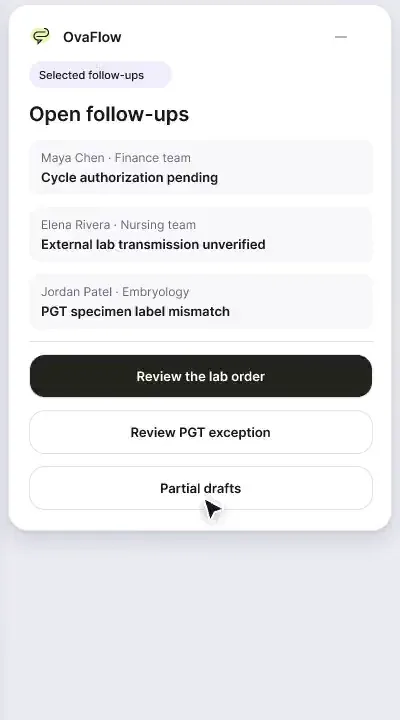
    On-screen narration: A penicillin rash Maya reported is compared against the allergy list in her chart. The allergy is handed to the nAbleIVF allergy section without saving anything automatically. The allergy item stays open in the open-work queue.

  2. Chapter 30:08 – 0:09

    A specimen label mismatch stops review

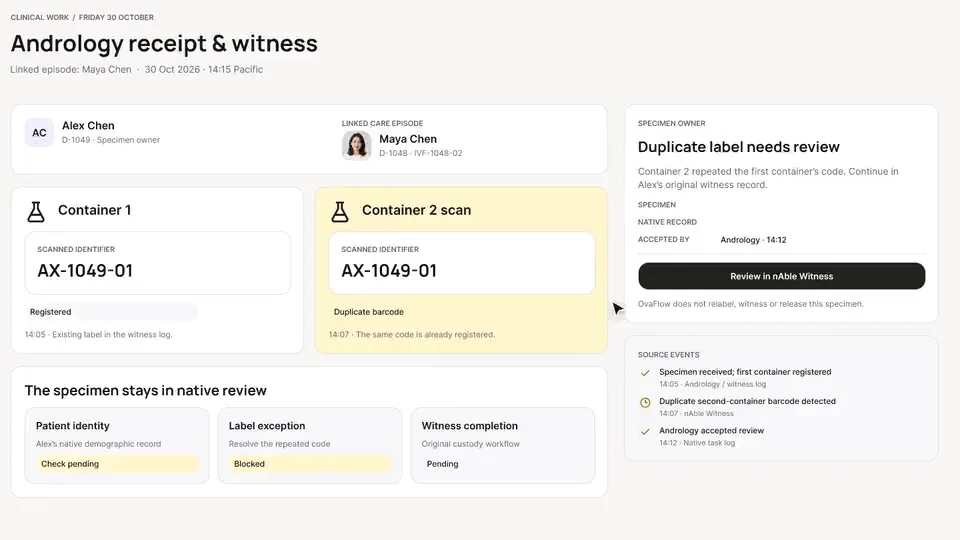
    What to watch for: When a specimen label does not match the active patient record, a red stop banner blocks further review.

    Boundary rule: No specimen task can advance while identifiers disagree.

    On-screen narration: A specimen label for Jordan Patel doesn't match the original report, so review stops.

  3. Chapter 40:09 – 0:17

    Elena's Day 8 monitoring note

    What to watch for: Switching to Elena Rivera's Day 8 monitoring visit, the nurse places the note and runs a save check.

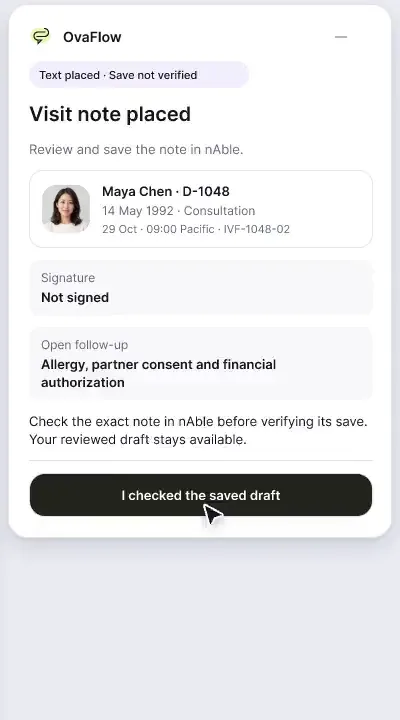
    Boundary rule: Placing text into an EMR field is distinct from confirming the EMR saved it.

    On-screen narration: Elena Rivera's Day 8 monitoring review opens. The clinician dictates the Day 8 cycle note. The transcribed note is reviewed against the monitoring ultrasound and labs. The reviewed text is placed in the nAbleIVF cycle-note field.

  4. Chapter 50:17 – 0:22

    Follow-up tasks and the patient message

    What to watch for: Approved follow-up tasks and the patient portal message are prepared from the verified Day 8 note.

    Boundary rule: Downstream tasks link back to the verified monitoring note.

    On-screen narration: Linked care-team and patient follow-up tasks are prepared. The patient monitoring message draft is reviewed. Staff continue in the nAbleIVF message composer.

  5. Chapter 60:22 – 0:26

    Sent, then checked in the message history

    What to watch for: After sending the portal update, the companion checks the portal's message history to confirm delivery.

    Boundary rule: The task closes only after the message appears in the clinic portal's sent log.

    On-screen narration: Staff press Send in nAbleIVF. The task waits for a person to check the sent log. The sent entry is confirmed in the nAbleIVF message history.

OvaFlow never makes the clinical call in these recordings. Physicians sign, the person taking a handoff accepts it, and the lab keeps its own holds. The companion tracks, checks and stops; staff decide.

In this walkthrough

The people on screen

Every patient, family member, clinician and clinic in these stories is fictional. Names, times and screens come from prototype walkthroughs, not from real care.

  • REI clinicianReviews the monitoring note
  • Monitoring nursePrepares follow-up
  • Andrology and lab reviewerReviews the specimen
  • Maya ChenPatient
  • Elena RiveraPatient
  • Jordan PatelPatient
Fictional patient data

Systems in this recording

Named or shown on screen. An EMR here is a modeled workflow example built for the prototype, not the vendor's own software. OvaFlow is designed to work beside these systems.

  • Fertility EMR & practice management
Show 2 systems often found around this workflow

Systems a clinic running this workflow often uses. They do not appear in this recording.

  • Managed browser
  • Managed browser

Third-party names and logos are trademarks of their respective owners, shown to illustrate systems commonly used in IVF clinics. No affiliation, endorsement or live integration is implied. nAbleIVF, eIVF and Artisan appear as modeled workflow examples.

Questions & answers

Common questions about this walkthrough

What clinicians, coordinators, practice leaders, and patients ask when reviewing Walkthrough 5.

Why doesn't OvaFlow automatically add Maya's reported allergy to the EMR allergy banner?

Allergy banners drive prescribing alerts in the clinic's EMR. OvaFlow highlights the patient-reported allergy and holds it for a clinician or nurse to verify and record in the EMR.

What happens when a specimen label mismatch is detected?

The companion blocks the workflow step immediately and keeps the mismatch visible until laboratory and nursing staff reconcile the specimen in the clinic's own system.

Show 1 more walkthrough questions
How does the save check work on Elena's Day 8 monitoring note?

After the nurse saves the note in the modeled nAbleIVF screen, the companion reads the committed record state back to confirm the note persisted.

Next step

Walk through it with your own team.

We'll replay this flow against your roles and handoffs, using fictional records. Please don't send patient data.