Guided tour
Workstation, messaging & recovery
How OvaFlow is designed to behave on a clinic workstation: docking, audio and call setup, every designed recovery state, routines people release and pause, and the checks that run before a patient message is sent. The five stops move from a single clinician's desktop rail to clinic-wide operational routines and multi-channel messaging handoffs.
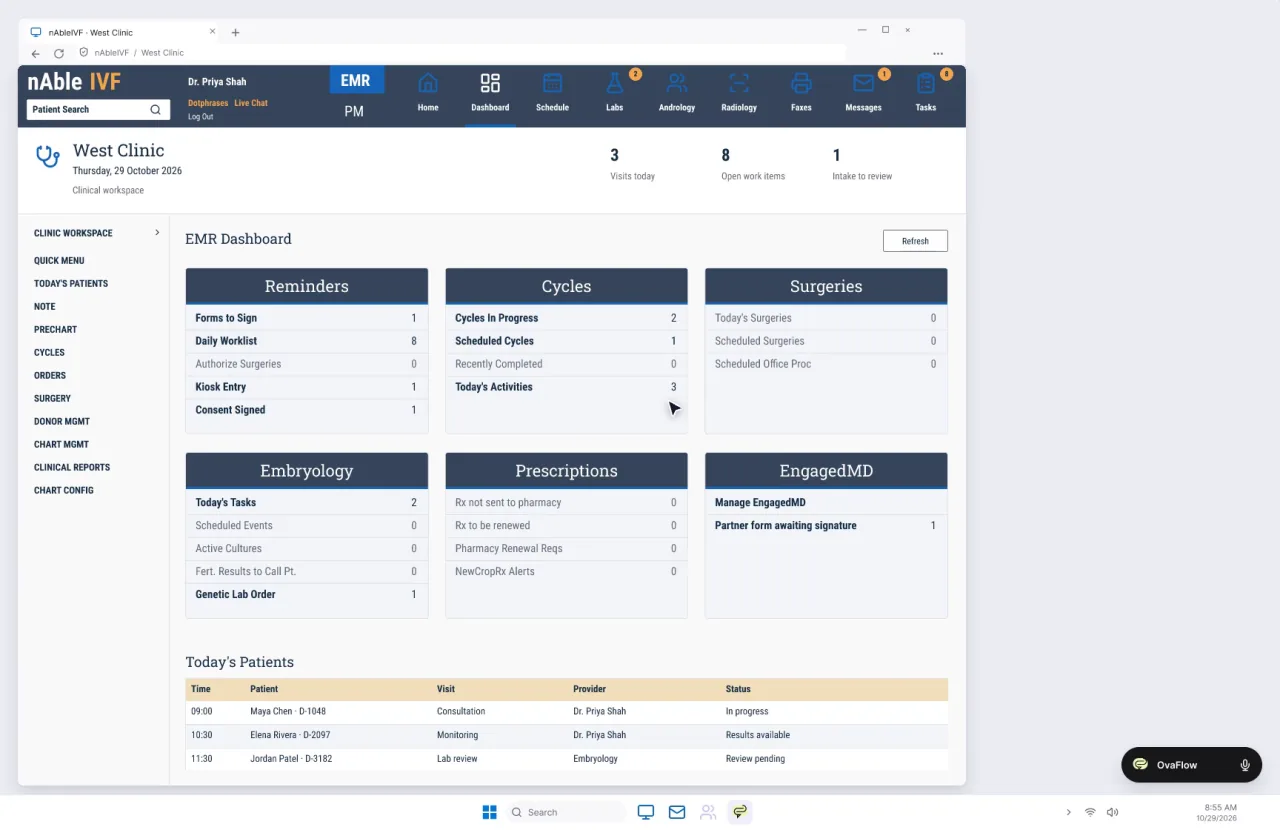
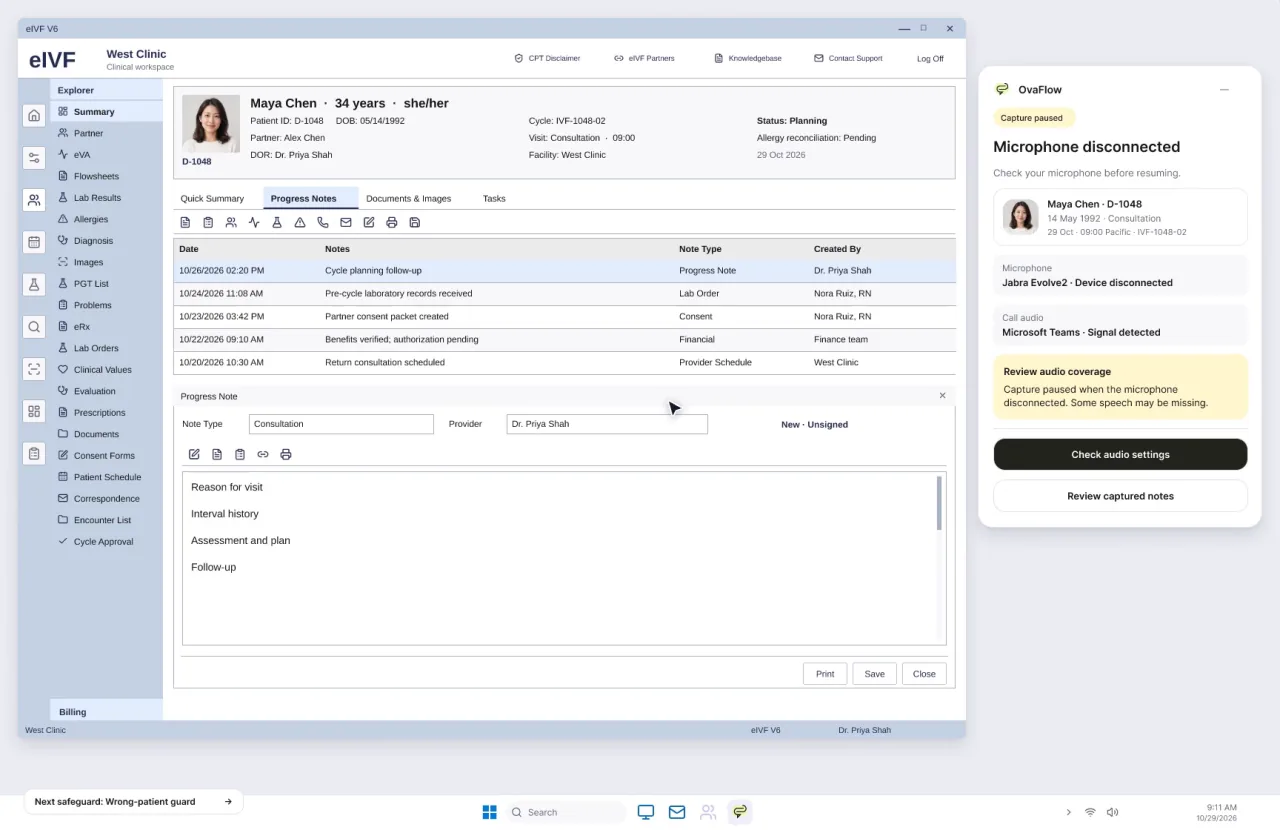
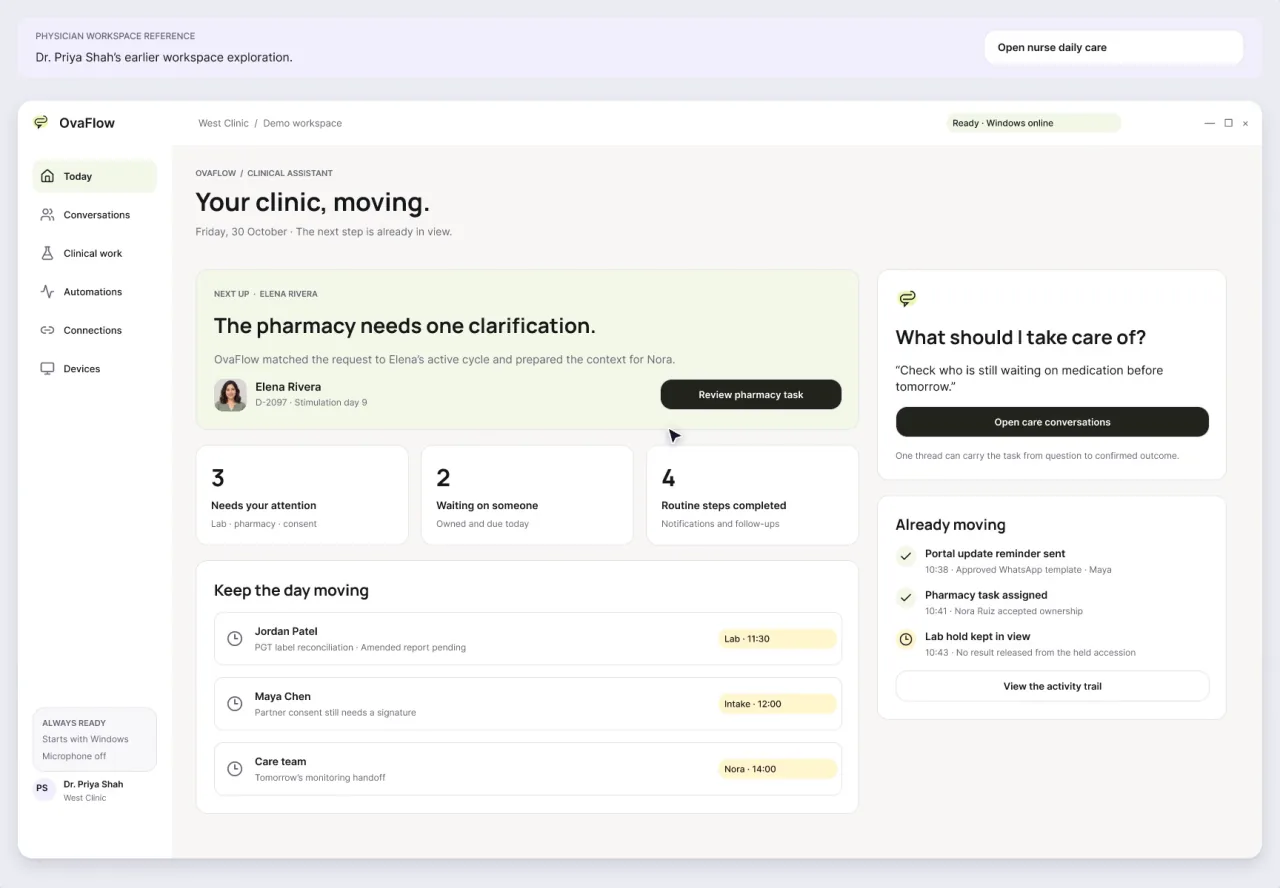
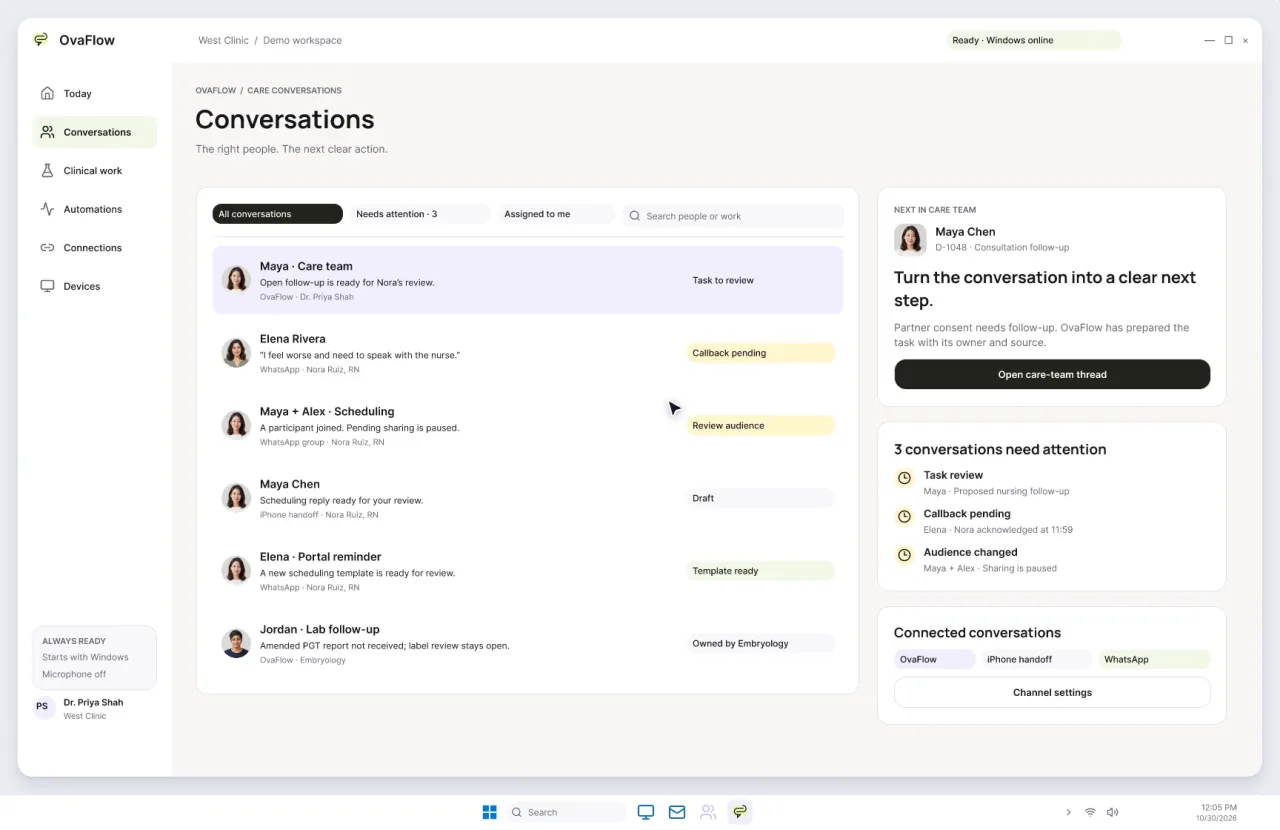
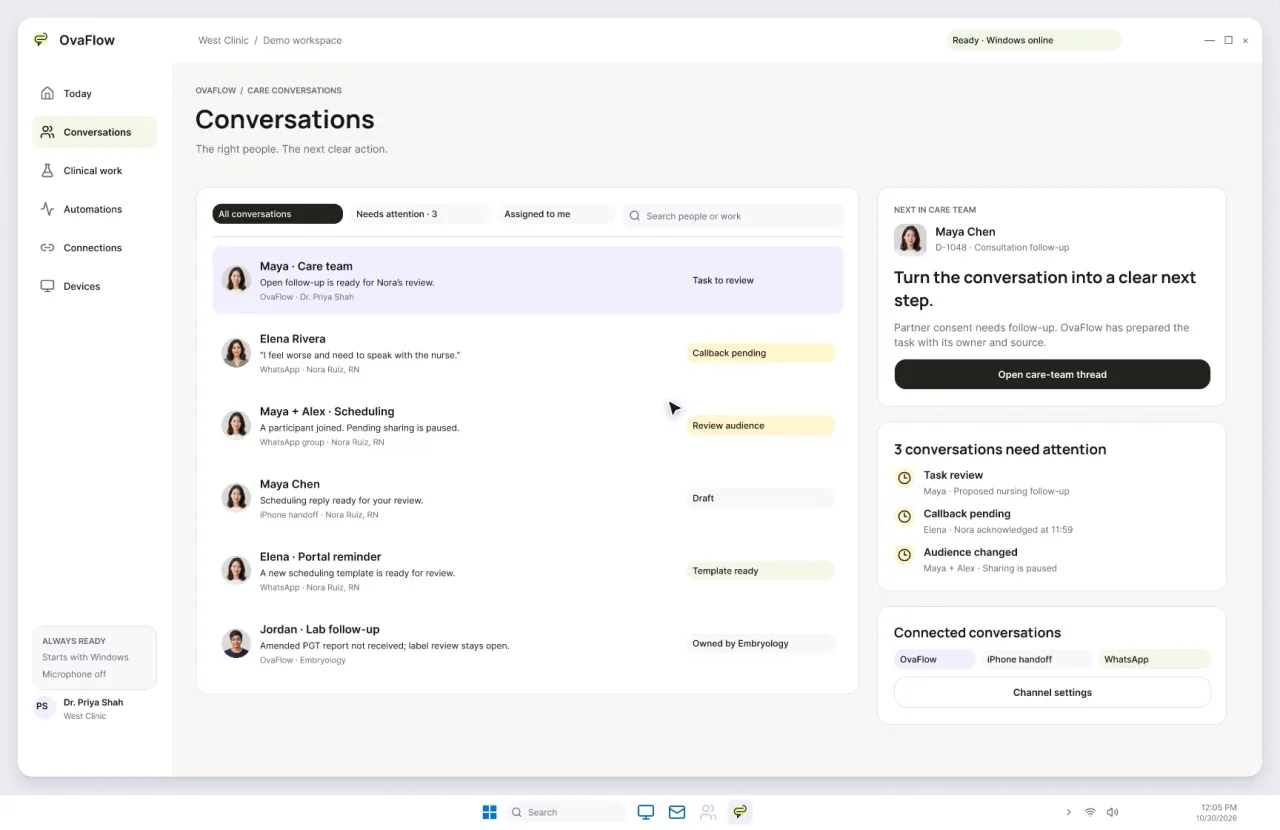
- Walkthroughs
- 5
- Running time
- 2:57
- For
- Practice leaders · Nurses
Watch the tour
Walkthrough 1 of 5: Windows companion: docking, audio setup, practice and call capture
Windows companion: docking, audio setup, practice and call capture, muted recording of the design prototype. Fictional patient data.
Chapter 1 of 10: A pill that stays out of the way
Narrative arc & route map
Why these walkthroughs are sequenced together.
The Windows companion, failure recovery, always-on routines and care conversations.
The clinical & operational thread
Operations directors, clinic IT leads, and nursing supervisors ask practical questions that happy-path product demos almost always skip: Does this floating window steal keyboard focus while a nurse is typing in the EMR? What happens when a USB headset unplugs mid-call, a Citrix/remote-desktop window blocks clipboard transfer, or a browser session expires over lunch? And when five staff members share a care inbox across desktop and clinic iPhones, what stops duplicate replies or accidental disclosure on a partner thread?
This five-stop tour (3:25 total) is built specifically for operations, IT, and nursing leadership. Stop 1 walks through the Windows floating pill and left-edge dock, audio setup, non-focus-stealing prompts, chart-free practice mode, and consent-first call capture. Stop 2 stress-tests seven workstation failure modes (unplugged headset, mid-draft chart switch, unverified saves, expired session, remote-desktop boundary, interrupted capture recovery, and partial draft retention). Stop 3 shows the always-on workspace across a 15-minute break, chart re-verification, staff-released routines, microphone-free operation, and ignoring protected windows. Stops 4 and 5 cover multi-party care conversations, duplicate-send guards, clinical routing of dose questions, template enforcement, and channel opt-in blocks.
Grounded in published clinical and safety guidance [10][13][14][18][19].
5-stop workstation, recovery & messaging route: from Windows ergonomics to multi-channel guards
- Windows 1440 pxFocus-safe + Consent first
- Desktop recoveryPartial drafts preserved
- Desktop command centerResume re-check + Protected window
- Desktop care inboxRecipient scope + Duplicate stop
- Desktop + Clinic iPhoneTemplate & opt-in gates
What OvaFlow coordinates across this tour
- Keeps dictation and call prompts focus-safe on Windows and works 100% without a microphone.
- Preserves partial audio and text drafts across headset disconnects, chart switches, and session timeouts.
- Enforces duplicate-send checks, partner disclosure banners, template rules, and channel opt-in gates before any message is sent.
What stays with clinicians & the clinic's own systems
- Never observes protected password windows or unrelated desktop applications.
- Never fires unattended patient communications without staff review and release.
- Never sends reminders on channels where patient opt-in is missing or revoked.
The sequence
Every stop, in order.
Operations, IT and nursing leads. Each walkthrough also has its own page with chapters, a full transcript and the pages it belongs to.
- 01
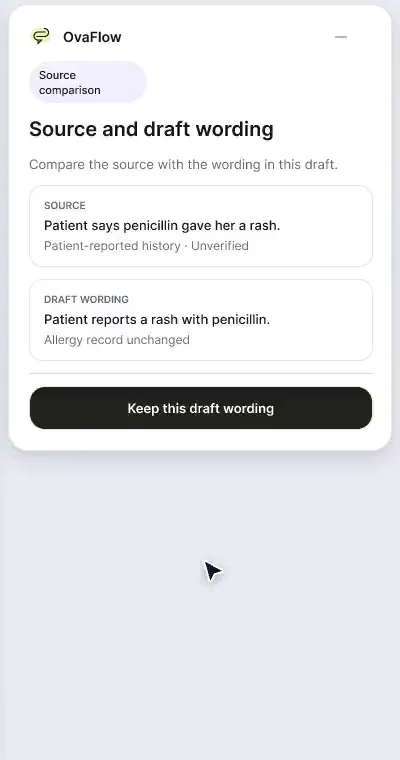
Windows companion: docking, audio setup, practice and call capture
A floating companion designed to dock away from Save buttons, stay out of keyboard focus, ask before listening, and let staff practice outside any chart.
Introduces day-to-day workstation ergonomics on Windows: floating pill vs. left-edge dock, headset check, practice mode outside any chart, focus-safe dictation, consent-first call capture, and transcript comparison.
What to watch for & handoff to next stop
Watch for: Watch dictation compose inside the companion without moving the active Windows cursor in the background application.
Handoff: Once normal workstation operation is established, Stop 2 pulls the plug on hardware, sessions, and chart context.
- 02
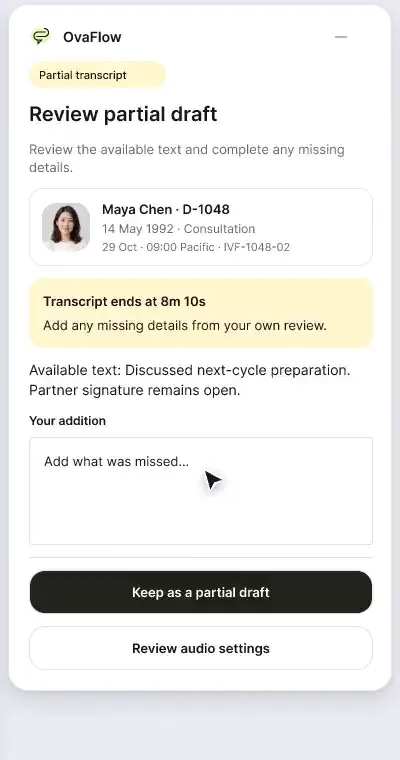
Workstation failure and recovery catalog
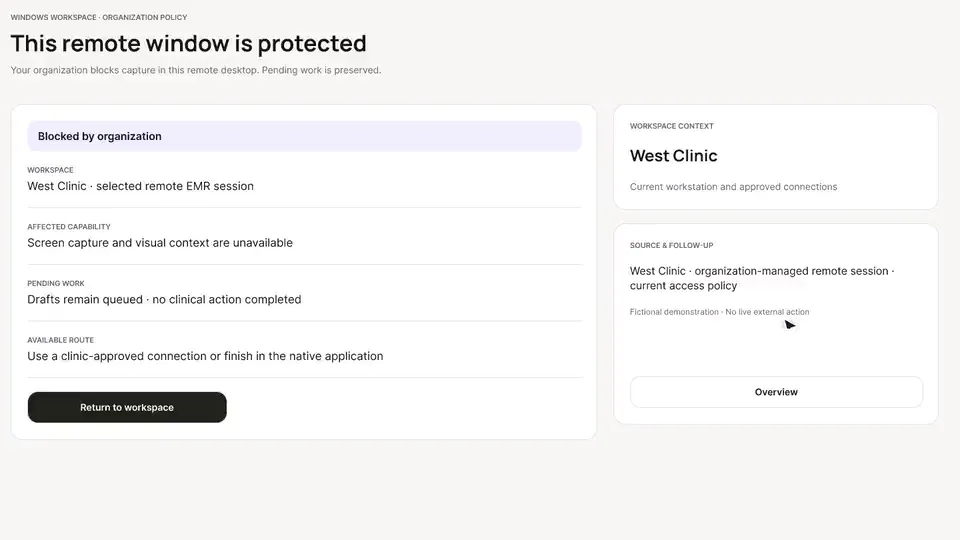
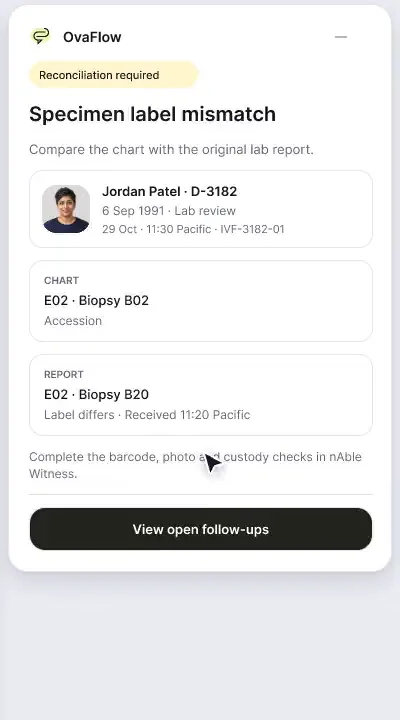
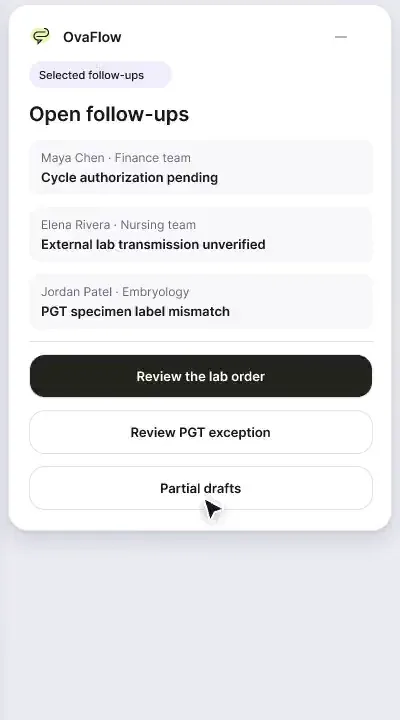
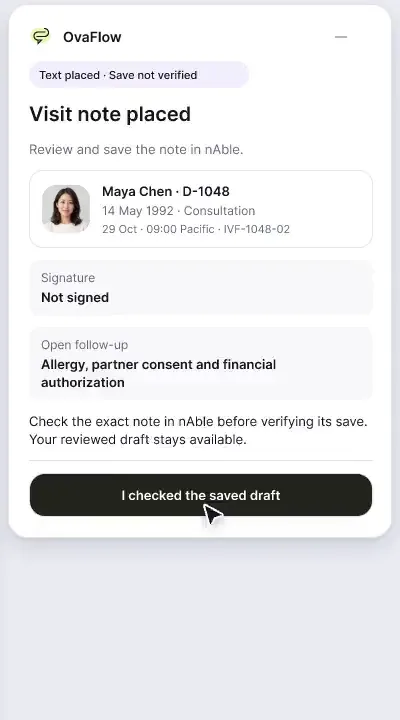
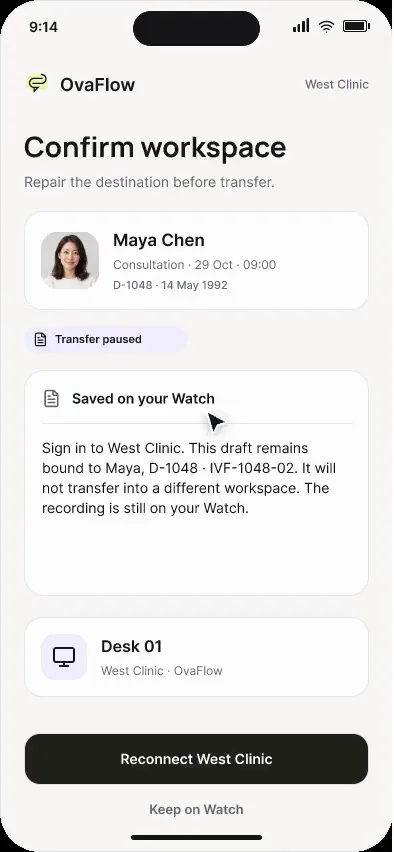
Fourteen designed recovery states, from an unplugged headset to a blocked remote-desktop clipboard, each keeping the draft and the right patient.
Walks through seven real-world failure states: unplugged headset, patient chart change mid-draft, unverified saves/sends, expired session, remote-desktop block, capture resume, and partial draft preservation.
What to watch for & handoff to next stop
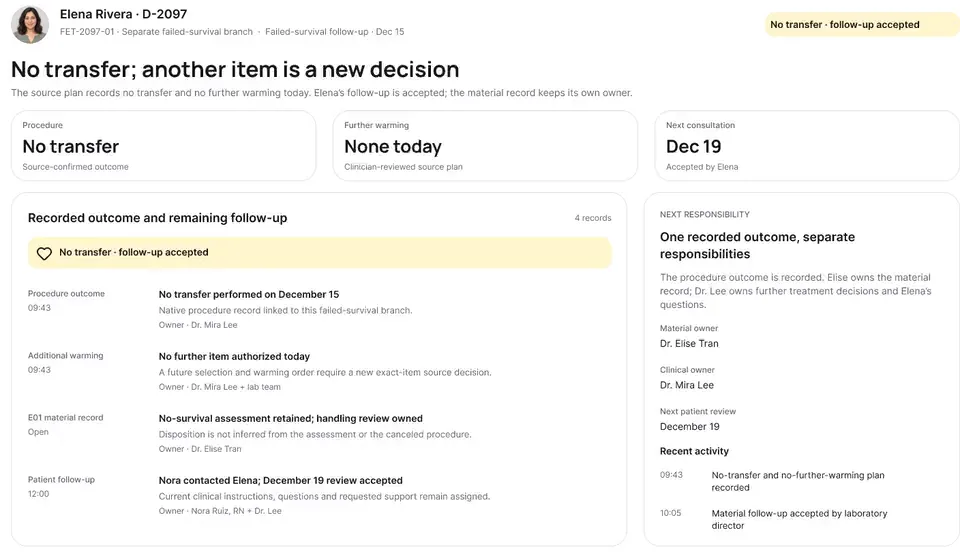
Watch for: Notice that switching the background chart mid-draft locks the draft to Elena Rivera rather than letting text land in the newly opened chart.
Handoff: Moves from acute failure recovery to full-shift workspace management in Stop 3.
Show stops 3–5 in this tour (3 more walkthroughs)
- 03
Always-on clinic workspace: routines people release
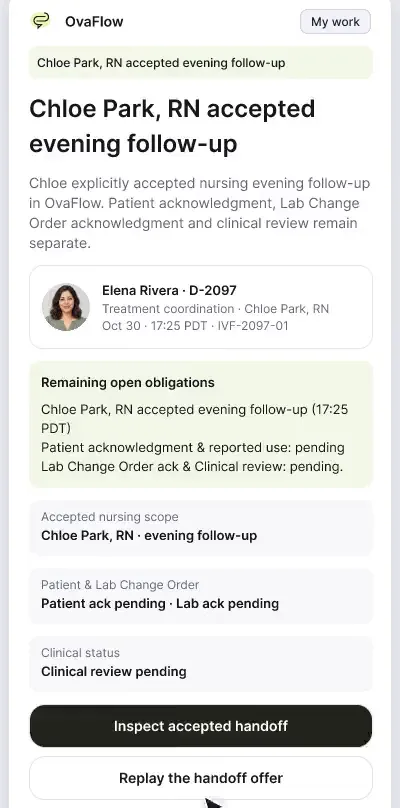
Routine follow-through runs under rules your team sets, pauses on request, and re-checks the open chart before it resumes.
Shows how the full-screen workspace behaves across a shift: pausing for 15 minutes, re-verifying the open chart on return, releasing team routines, working without a microphone, and ignoring protected windows.
What to watch for & handoff to next stop
Watch for: Watch the workspace require a fresh chart check after the 15-minute pause before re-enabling placement actions.
Handoff: Transitions from workstation state management to outbound patient communication in Stops 4 and 5.
- 04
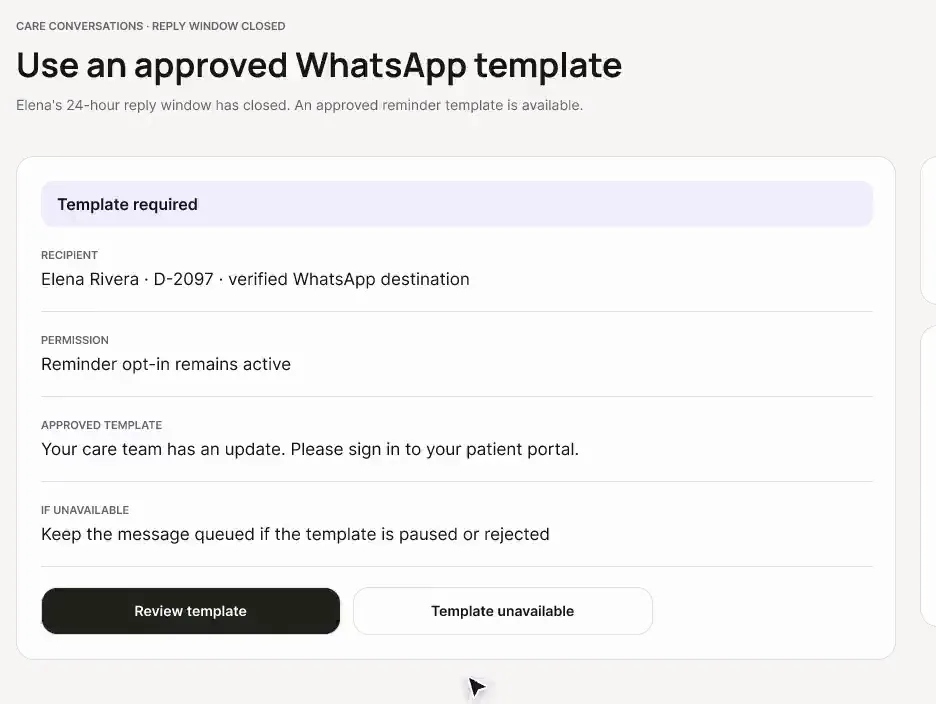
Care conversations: audience change, duplicate send, clinical routing
When someone new joins the thread just before a clinical update, the send pauses. Duplicate reminders are caught, and dose questions go to a nurse instead of an automated reply.
Demonstrates the shared care inbox: partner thread visibility banners, single-owner claiming for urgent callbacks, checking portal history to stop duplicate sends, and routing medication dose questions to a nurse.
What to watch for & handoff to next stop
Watch for: Watch the duplicate-send check catch that a reply was already sent before a second nurse can send a redundant message.
Handoff: Extends the care inbox from the desktop to the clinic iPhone and external messaging channels in Stop 5.
- 05
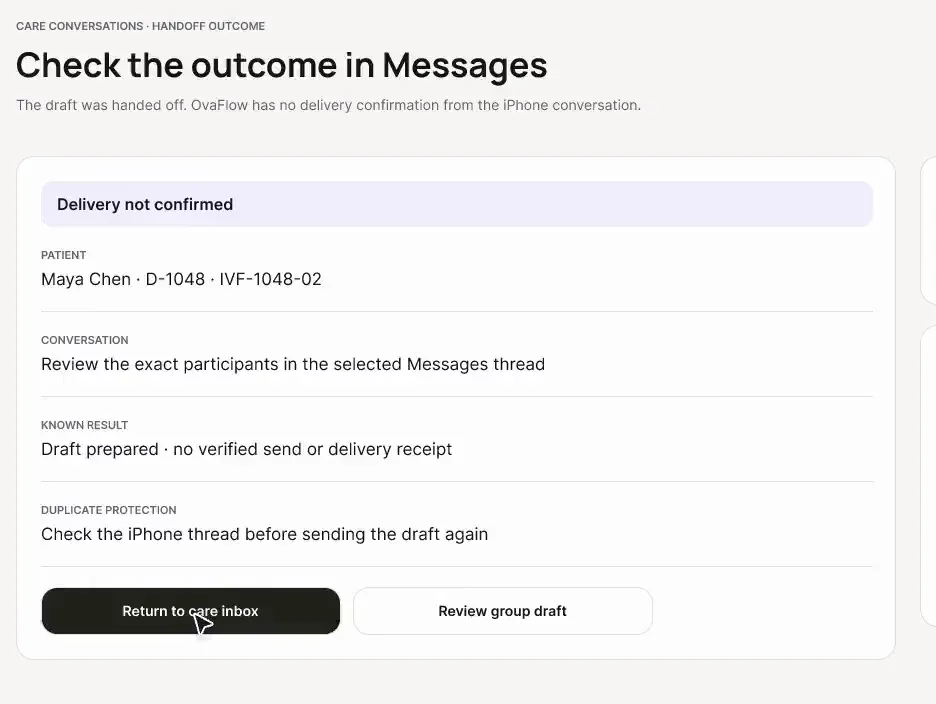
Care channels: iPhone Messages handoff, templates and opt-ins
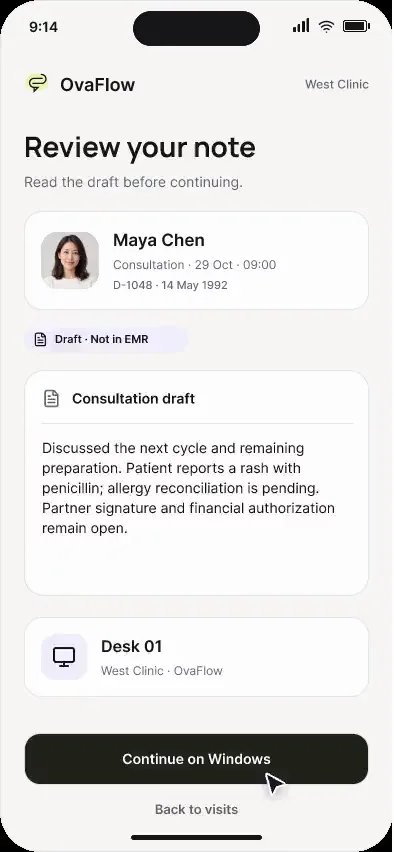
A desktop draft goes to the clinic iPhone with recipients checked, and templates and opt-ins are enforced before anything is sent.
Shows desk-to-iPhone conversation handoff, channel-specific content rules, group thread disclosure limits, blocking sends when a required template is missing, Apple Messages for Business, and blocking reminders without opt-in.
What to watch for & handoff to next stop
Watch for: Watch the hard stops on 'No approved template, no send' and 'No opt-in, no reminder'.
Handoff: Completes the Workstation, Messaging & Recovery tour.
Tour FAQ
Questions about the Workstation, messaging & recovery tour
Common questions from operations, it and nursing leads reviewing this sequence.
What happens if our clinic runs the EMR inside a Citrix or remote-desktop session?
Stop 2 shows that when a remote-desktop boundary blocks direct field placement, OvaFlow detects the constraint and presents a clear, field-by-field verified workflow rather than failing silently.
Can staff use OvaFlow on workstations that do not have microphones or headsets?
Yes. Stop 3 demonstrates full operation with the microphone disabled — all task queues, handoff acceptances, readiness gates, and save checks are keyboard- and mouse-operated.
How does OvaFlow prevent two coordinators from replying to the same patient message?
Stops 4 and 5 show live single-owner claiming on every thread plus a pre-send history check that halts placement if another reply landed in the interim.
Other tours
Pick another path.
Executive overview
Practice leaders and medical directorsArtisan clinics
Clinics that run ArtisannAbleIVF & eIVF clinics
Clinics that run nAbleIVF or eIVF
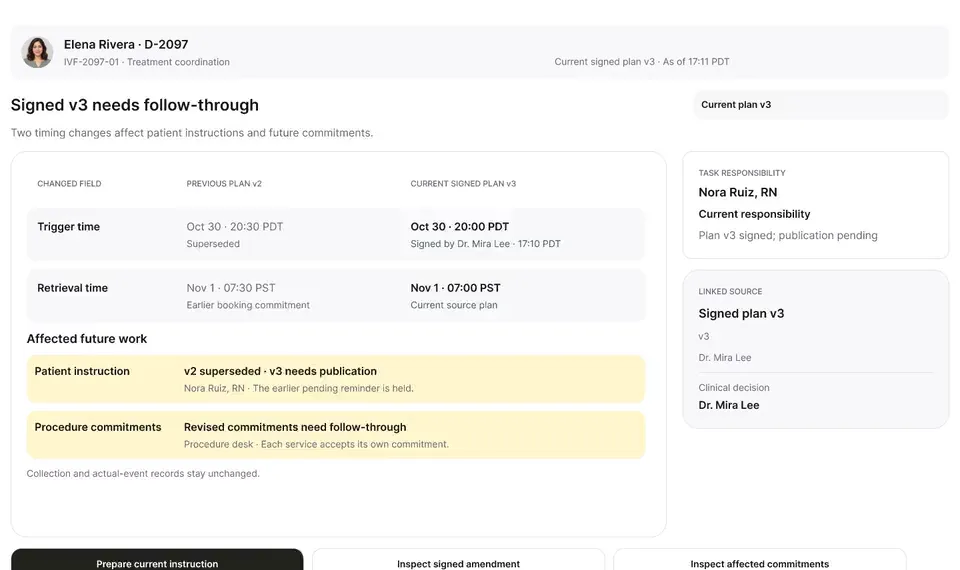
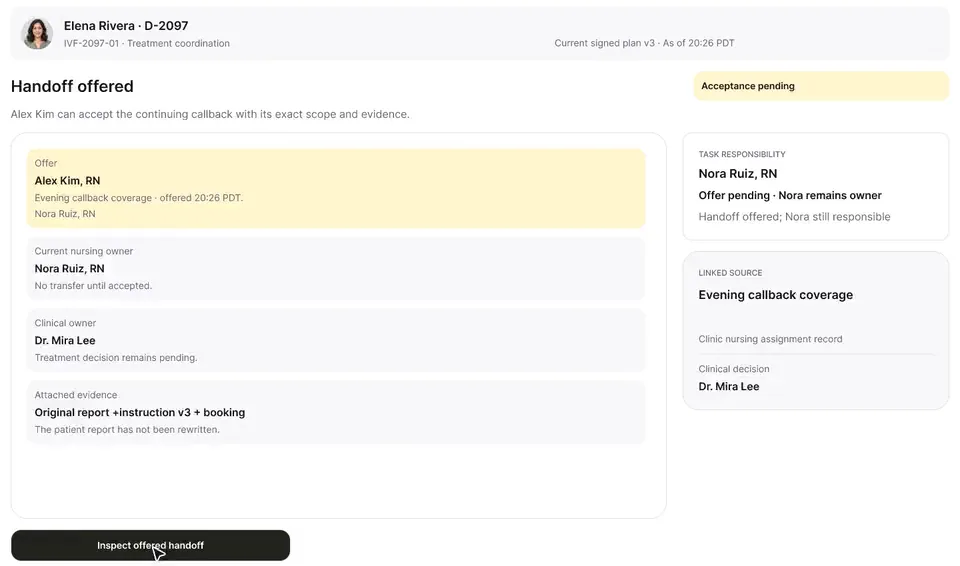
Show 3 more guided tours (Mobile & Watch · Patient experience · Lab, cryo & pharmacy)
Next step
Seen the recordings? Walk it with us.
A guided walkthrough of the design prototype, paced around your questions and your team's day. Fictional records only; please don't send patient data.