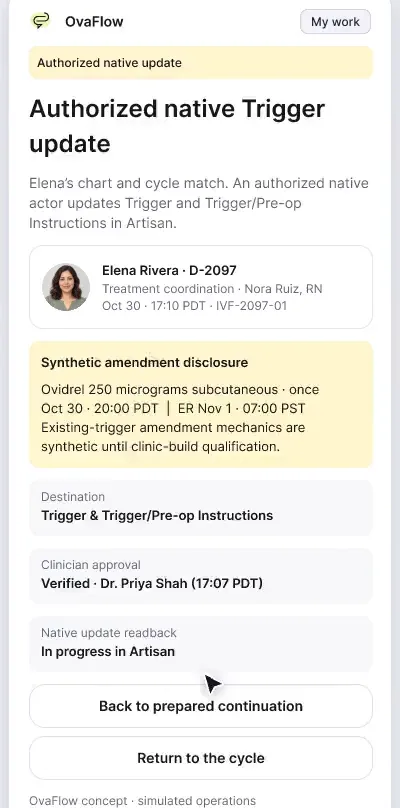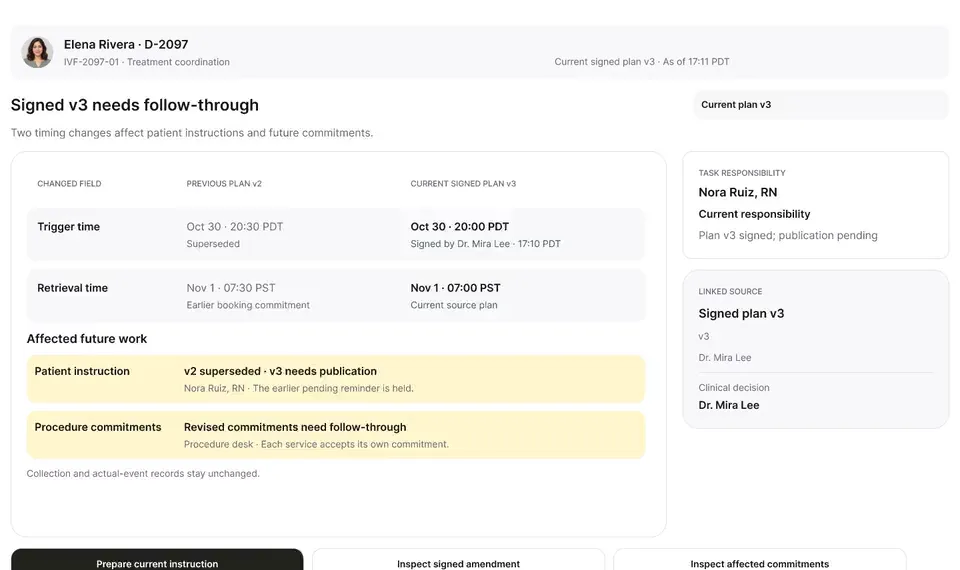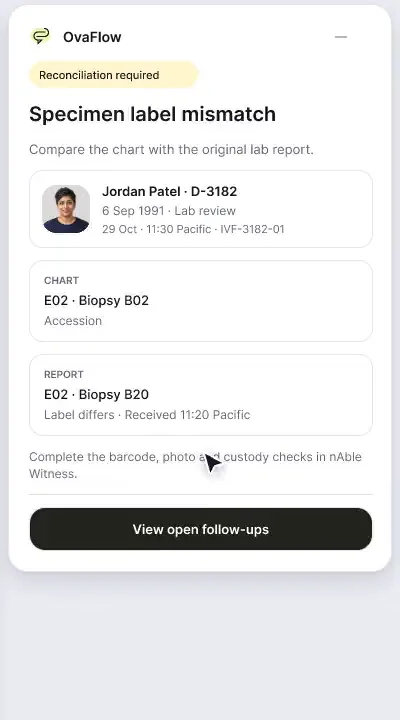
nAbleIVF: allergy check, monitoring note, save check, specimen stop
A patient-reported penicillin rash is surfaced against the chart, a monitoring note is confirmed saved rather than assumed, and a specimen label mismatch stops review.
Product preview · Fictional patient data
Walkthrough 17 of 29 · iOS widgets
Counts at a glance on the Home Screen, no names on the Lock Screen, Face ID before details, and a recording indicator that stays visible.
iOS widgets, Live Activity, Dynamic Island and Face ID, muted recording of the design prototype. Fictional patient data.
Chapter 1 of 6: Counts at a glance
Recorded from an interactive design prototype. Every patient, clinician and clinic is fictional, EMR screens are modeled reconstructions, and nothing shown is a live connection to any clinic or vendor system.
Clinical & operational context
How OvaFlow could appear on iPhone system surfaces. The Home Screen shows queue counts, the Lock Screen hides names by default, and Face ID is required before details or recording changes. Widgets say honestly whether a note is saved in OvaFlow or placed in the EMR, and when they last synced.
Clinicians and on-call nurses rely on iOS Lock Screen widgets, Home Screen widgets, Live Activities, Dynamic Island, and Apple Watch complications to see whether an urgent lab result or patient callback is waiting. However, Lock Screens and ambient glances are visible to anyone sitting nearby on a train, at a coffee counter, or in a shared hallway. Displaying patient names or reproductive diagnoses on an unlocked glance surface is an immediate privacy failure; equally dangerous is a widget that keeps displaying '0 urgent tasks' when the phone lost connectivity 40 minutes ago.
This walkthrough demonstrates OvaFlow's ambient glance surfaces across iPhone and Apple Watch: showing aggregate task counts at a glance, keeping patient names off the Lock Screen, requiring Face ID authentication before revealing patient identities or clinical context, surfacing active timers in Live Activities and the Dynamic Island without exposing sensitive details, matching privacy rules on the Apple Watch face, and marking widgets explicitly stale/offline when connectivity drops.
Lock Screen widget
Shows aggregate open & urgent counts with zero patient names
Face ID gate
Requires Face ID before revealing Elena Rivera's name
Live Activity
Tracks active handoff countdown without sensitive text
Offline detector
Flags 'Offline since 17:40' instead of showing old counts
How Lock Screen widgets, Live Activities, Dynamic Island, and Watch complications protect patient identity and report offline state.
Guardrail: Zero patient names appear on locked or ambient screens, and offline widgets replace stale counts with an explicit offline timestamp.
What to watch for
How OvaFlow could appear on iPhone system surfaces. The Home Screen shows queue counts, the Lock Screen hides names by default, and Face ID is required before details or recording changes. Widgets say honestly whether a note is saved in OvaFlow or placed in the EMR, and when they last synced.
Follow the exact timestamps, UI status changes, and coordination safeguards as the recording plays.
What to watch for: Home Screen and Lock Screen widgets show how many callbacks, expected labs, and handoffs need attention.
Boundary rule: Aggregate counts give situational awareness without exposing who the patients are.
On-screen narration: The Home Screen widget shows clinical queue counts.
What to watch for: On the locked iPhone screen, patient names and clinical reasons are completely omitted.
Boundary rule: Locked screens are treated as public surfaces by default.
On-screen narration: The Lock Screen widget hides patient names by default.
What to watch for: Tapping a widget prompts Face ID before transitioning into the named patient queue.
Boundary rule: Patient details appear only after biometric or passcode unlock.
On-screen narration: Face ID is required before any clinical details open.
What to watch for: Dynamic Island and Live Activities track an active callback or capture timer using neutral labels.
Boundary rule: Persistent top-of-screen pills never scroll patient names across the display.
On-screen narration: A Live Activity shows the capture timer at a glance. Changing an active recording requires unlocking the device. Back to the Live Activity. The widget distinguishes “Saved in OvaFlow” from “Placed in EMR”. The Dynamic Island keeps a recording indicator visible.
What to watch for: The Apple Watch complication mirrors the same counts-first, privacy-first behavior on the wrist.
Boundary rule: Every wearable glance follows identical redaction rules.
On-screen narration: The Apple Watch Smart Stack shows capture state at a glance. A watch face complication opens capture in one tap.
What to watch for: When the phone loses network connection, the widget explicitly displays its last-updated time and offline state.
Boundary rule: An offline widget never pretends the queue is empty.
On-screen narration: Lock Screen privacy is on by default in settings. Offline, the widget shows when it last synced.
OvaFlow never makes the clinical call in these recordings. Physicians sign, the person taking a handoff accepts it, and the lab keeps its own holds. The companion tracks, checks and stops; staff decide.
In this walkthrough
Every patient, family member, clinician and clinic in these stories is fictional. Names, times and screens come from prototype walkthroughs, not from real care.
Named or shown on screen. An EMR here is a modeled workflow example built for the prototype, not the vendor's own software. OvaFlow is designed to work beside these systems.
Third-party names and logos are trademarks of their respective owners, shown to illustrate systems commonly used in IVF clinics. No affiliation, endorsement or live integration is implied. nAbleIVF, eIVF and Artisan appear as modeled workflow examples.
Where this appears
This recording is part of these pages. Each one explains the step in more depth.
Questions & answers
What clinicians, coordinators, practice leaders, and patients ask when reviewing Walkthrough 17.
No. By default, Lock Screen widgets, Live Activities, and Watch complications display only aggregate task counts and neutral timers until the clinician authenticates with Face ID.
Instead of showing stale task counts that look current, the widget displays an explicit offline badge and the timestamp of the last verified sync.
An active timer and recording indicator so the clinician always sees capture is running, without displaying the patient's name in the top pill.
Related
A patient-reported penicillin rash is surfaced against the chart, a monitoring note is confirmed saved rather than assumed, and a specimen label mismatch stops review.
Beside a modeled Artisan view, the companion compares Dr. Priya Shah's approval with the unchanged Artisan fields, stops on Maya's open chart, and won't assume an update it didn't see.
A late estradiol result, a newly signed trigger time, the wrong chart caught before publishing, and a lost confirmation checked rather than blindly resent.
Next step
We'll replay this flow against your roles and handoffs, using fictional records. Please don't send patient data.