Care conversations: audience change, duplicate send, clinical routing
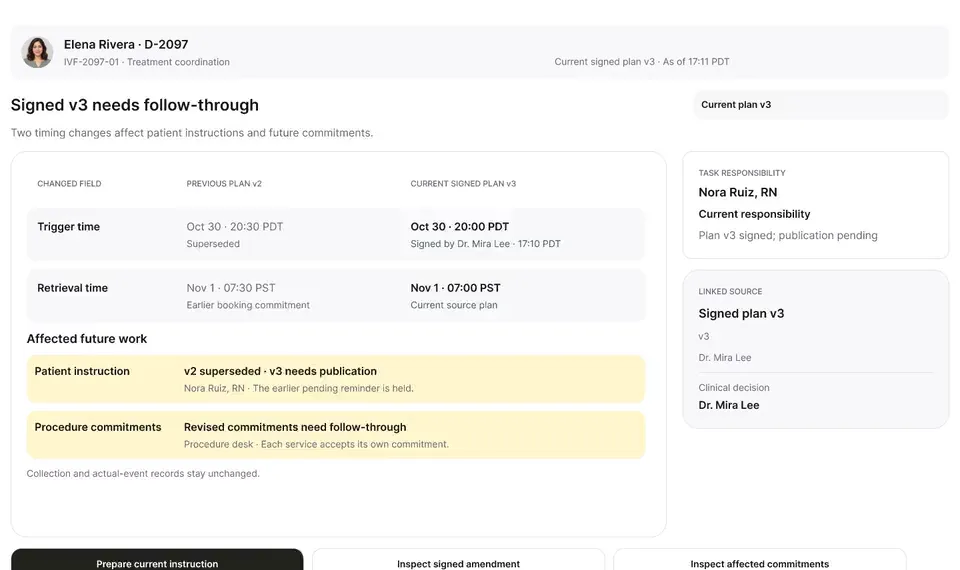
When someone new joins the thread just before a clinical update, the send pauses. Duplicate reminders are caught, and dose questions go to a nurse instead of an automated reply.
Product preview · Fictional patient data
Walkthrough 28 of 29 · Desktop
A desktop draft goes to the clinic iPhone with recipients checked, and templates and opt-ins are enforced before anything is sent.
Care channels: iPhone Messages handoff, templates and opt-ins, muted recording of the design prototype. Fictional patient data.
Chapter 1 of 7: A reply, ready for review
Recorded from an interactive design prototype. Every patient, clinician and clinic is fictional, EMR screens are modeled reconstructions, and nothing shown is a live connection to any clinic or vendor system.
Clinical & operational context
How care conversations reach patients through modeled clinic channels. A reply drafted on the desktop is staged for the clinic's iPhone Messages app, and the clinician confirms what was actually sent. Group updates stay within what the group agreed to, and reminders wait when an approved template or the patient's opt-in is missing.
Fertility clinics communicate with patients across web portals, clinic iPhones, SMS/text reminders, and rich messaging channels such as Apple Messages for Business. Without strict channel-level guardrails, staff can accidentally text sensitive clinical details over an unapproved SMS channel, broadcast a partner thread message that exceeds a patient's disclosure scope, send a free-form message where policy requires an approved template, or fire an automated reminder to a phone number that has not opted in.
This 7-chapter walkthrough demonstrates multi-channel messaging safeguards across the desktop workspace and the clinic iPhone: reviewing a prepared reply at the desk, handing an active conversation to the clinic iPhone for on-floor follow-up, checking channel privacy rules before composing, keeping a multi-person group update strictly within its permitted disclosure scope, blocking outbound sends when a channel requires an approved template that is missing, showing how a verified Apple Messages for Business thread operates within clinic guardrails, and blocking any reminder when patient opt-in is absent or revoked.
Nora Ruiz, RN
Reviews reply draft and hands thread to clinic iPhone
OvaFlow safeguard
Verifies recipient list and disclosure scope before send
OvaFlow safeguard
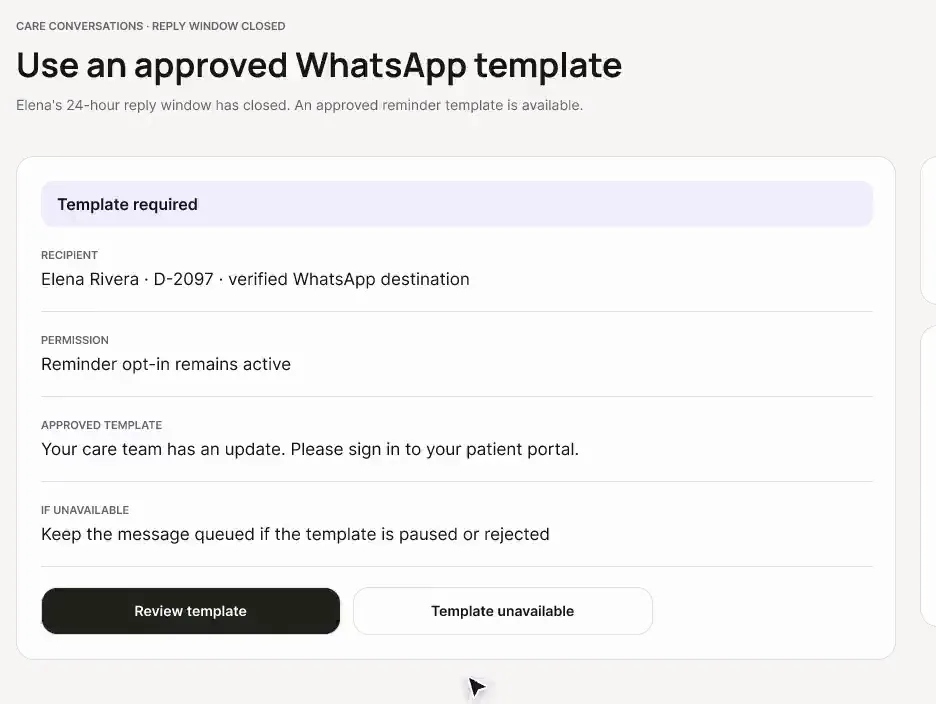
Blocks free-text send when channel requires approved template
OvaFlow safeguard
Blocks reminder send when channel opt-in is missing
How OvaFlow enforces channel rules across desktop portal threads, clinic iPhones, and Apple Messages for Business.
Guardrail: Missing channel opt-in or missing required message templates blocks outbound sending immediately.
What to watch for
How care conversations reach patients through modeled clinic channels. A reply drafted on the desktop is staged for the clinic's iPhone Messages app, and the clinician confirms what was actually sent. Group updates stay within what the group agreed to, and reminders wait when an approved template or the patient's opt-in is missing.
Follow the exact timestamps, UI status changes, and coordination safeguards as the recording plays.
What to watch for: A patient reply sits ready for staff review at the desktop workstation with full episode context.
Boundary rule: Drafts are always reviewed by staff before sending.
On-screen narration: The care conversations inbox opens with a reply to Maya Chen ready for review. Maya's one-to-one scheduling thread and the drafted reply open.
What to watch for: The nurse hands the reviewed thread to the clinic iPhone while preserving ownership and draft state.
Boundary rule: Moving from desk to floor never creates two competing drafts.
On-screen narration: The reply is staged for the clinic's paired iPhone Messages app, with the recipient checked. For a group message, the send is completed on the paired iPhone. The clinician confirms in Messages what was actually sent.
What to watch for: Before the Send button enables, OvaFlow checks the channel's privacy and content rules.
Boundary rule: Different channels (portal vs. SMS vs. Apple Messages for Business) enforce different content limits.
On-screen narration: Channel consent and messaging rules are checked across the portal, WhatsApp and Apple Messages. One deduplicated reminder is previewed before a person approves it. A single delivery is logged to the episode timeline. Back to the inbox to check a group update and the template rules.
What to watch for: On a shared partner/group thread, the composer restricts content to topics cleared for all participants.
Boundary rule: Private solo-chart items cannot be dropped into a group thread.
On-screen narration: Maya Chen's care-team thread opens. The invited care group roster is checked. The care group participants are confirmed. A logistics update is checked against what the group agreed to receive. The approved group update is submitted and recorded.
What to watch for: When an external channel requires a clinic-approved template and none is selected, sending is blocked.
Boundary rule: Ad-hoc free text cannot skip channel template rules.
On-screen narration: Back to the inbox to test a missing WhatsApp template. The WhatsApp Business template requirement is shown. With no approved template available, the reminder is held.
What to watch for: A modeled Apple Messages for Business view illustrates rich verified clinic messaging within those same guards.
Boundary rule: Shown as a design exploration of structured patient messaging.
On-screen narration: An authorized Apple Messages for Business appointment update is reviewed. The Apple Messages for Business service accepts the update.
What to watch for: When a patient has not opted in (or has opted out) of a messaging channel, OvaFlow blocks the reminder completely.
Boundary rule: No opt-in means no outbound message on that channel, ever.
On-screen narration: Without the patient's opt-in, automated reminders are blocked.
OvaFlow never makes the clinical call in these recordings. Physicians sign, the person taking a handoff accepts it, and the lab keeps its own holds. The companion tracks, checks and stops; staff decide.
In this walkthrough
Every patient, family member, clinician and clinic in these stories is fictional. Names, times and screens come from prototype walkthroughs, not from real care.
 Maya ChenPatient
 Elena RiveraPatient
Named or shown on screen. An EMR here is a modeled workflow example built for the prototype, not the vendor's own software. OvaFlow is designed to work beside these systems.
 Patient messaging channel
 Clinic workstation OS
Third-party names and logos are trademarks of their respective owners, shown to illustrate systems commonly used in IVF clinics. No affiliation, endorsement or live integration is implied. nAbleIVF, eIVF and Artisan appear as modeled workflow examples.
Where this appears
This recording is part of these pages. Each one explains the step in more depth.
Questions & answers
What clinicians, coordinators, practice leaders, and patients ask when reviewing Walkthrough 28.
The send action is blocked with an explicit 'No opt-in, no reminder' banner and prompts the coordinator to use the patient's approved portal or phone channel instead.
On external messaging channels outside the authenticated portal, clinics restrict messages to pre-approved, privacy-safe templates (for example, 'You have a new instruction waiting in your portal') so sensitive medical details are not sent over plain text.
It is tagged as a 'Later phase' design exploration showing how rich verified business messaging can follow the same opt-in and template safeguards.
Related
When someone new joins the thread just before a clinical update, the send pauses. Duplicate reminders are caught, and dose questions go to a nurse instead of an automated reply.
A late estradiol result, a newly signed trigger time, the wrong chart caught before publishing, and a lost confirmation checked rather than blindly resent.
Next step
We'll replay this flow against your roles and handoffs, using fictional records. Please don't send patient data.