Clinician iPhone: in-room capture, consent and an offline desk
Confirm the patient and consent before the mic turns on, pause for the exam, and hand the draft to the desk even while the desk is offline.
Product preview · Fictional patient data
Walkthrough 26 of 29 · iPhone
When Watch audio drops mid-note, the iPhone keeps what was captured, marks the gap, and reconnects the clinic workspace.
Paired iPhone: reviewing a wrist draft and repairing the workspace, muted recording of the design prototype. Fictional patient data.
Chapter 1 of 3: Reviewing the wrist draft
Recorded from an interactive design prototype. Every patient, clinician and clinic is fictional, EMR screens are modeled reconstructions, and nothing shown is a live connection to any clinic or vendor system.
Clinical & operational context
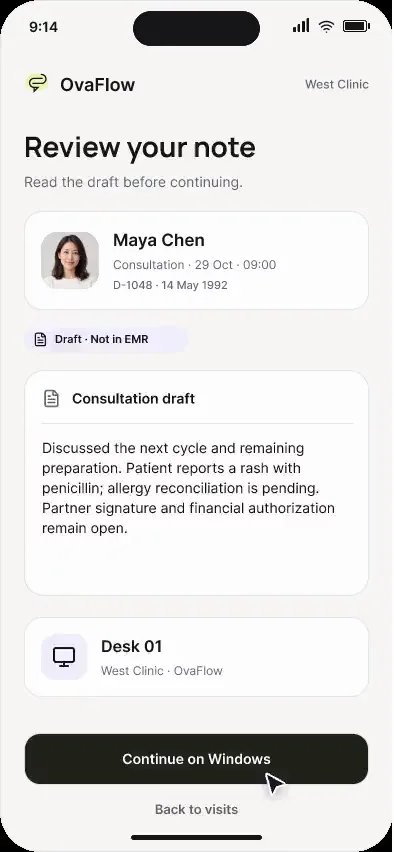
The iPhone side of wrist capture. A hallway note recorded on Apple Watch is reviewed on the paired iPhone; when the audio dropped partway, the gap is clearly marked and the partial transcript is kept. A disconnected clinic workspace is repaired without discarding the Watch note.
When a clinician or nurse records a quick voice note on an Apple Watch in a procedure corridor and then opens the paired iPhone a few minutes later, wireless interference or a mid-note pause can occasionally leave a short audio gap. If a transcription tool silently bridges over an inaudible or dropped 3-second segment with plausible-sounding guessed words, a medication number or follicle measurement can be fabricated without the clinician realizing it.
This paired iPhone walkthrough shows what happens immediately after an Apple Watch voice capture arrives on the clinician's iPhone: reviewing the wrist draft on the larger iPhone screen, seeing an audio gap explicitly marked in the transcript rather than filled with guessed words, and repairing the workspace state cleanly before sending the draft to the desk.
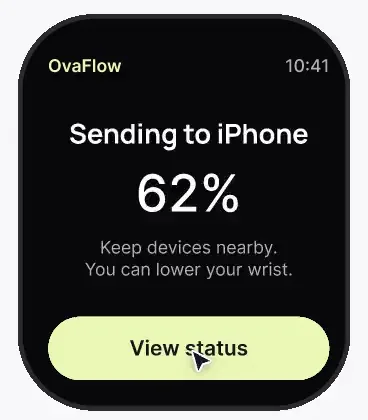
Apple Watch
Transfers locally saved voice memo to paired iPhone
OvaFlow safeguard
Highlights a 2-second audio drop as an explicit gap
Dr. Mira Lee
Fills the marked gap and confirms the draft
Desk handoff
Queues verified draft for desktop EMR placement
How an Apple Watch voice memo is inspected on the paired iPhone with explicit gap callouts before reaching the desktop queue.
Guardrail: Missing or interrupted audio segments are marked as explicit gaps and never filled by guessing.
What to watch for
The iPhone side of wrist capture. A hallway note recorded on Apple Watch is reviewed on the paired iPhone; when the audio dropped partway, the gap is clearly marked and the partial transcript is kept. A disconnected clinic workspace is repaired without discarding the Watch note.
Follow the exact timestamps, UI status changes, and coordination safeguards as the recording plays.
What to watch for: The clinician opens the paired iPhone to inspect the draft captured moments earlier on the Apple Watch.
Boundary rule: Phone review gives a full-screen check before the note reaches the desktop queue.
On-screen narration: The paired iPhone opens a hallway note drafted on the Apple Watch.
What to watch for: Where audio dropped briefly, a high-visibility '[Gap in recording — please check]' marker appears in line.
Boundary rule: OvaFlow never invents words to smooth over an audio drop.
On-screen narration: The Watch audio was interrupted, and the iPhone shows a clear missing-segment warning. The partial transcript is kept for the clinician to complete, not discarded.
What to watch for: The clinician resolves the marked gap and repairs the workspace link so the clean draft is ready at the desk.
Boundary rule: Only human-reviewed text moves forward to the workstation.
On-screen narration: The disconnected West Clinic workspace is repaired from the iPhone, and the Watch note is kept.
OvaFlow never makes the clinical call in these recordings. Physicians sign, the person taking a handoff accepts it, and the lab keeps its own holds. The companion tracks, checks and stops; staff decide.
In this walkthrough
Every patient, family member, clinician and clinic in these stories is fictional. Names, times and screens come from prototype walkthroughs, not from real care.
Named or shown on screen. An EMR here is a modeled workflow example built for the prototype, not the vendor's own software. OvaFlow is designed to work beside these systems.
 Clinic workstation OS
Third-party names and logos are trademarks of their respective owners, shown to illustrate systems commonly used in IVF clinics. No affiliation, endorsement or live integration is implied. nAbleIVF, eIVF and Artisan appear as modeled workflow examples.
Where this appears
This recording is part of these pages. Each one explains the step in more depth.
Questions & answers
What clinicians, coordinators, practice leaders, and patients ask when reviewing Walkthrough 26.
In IVF monitoring and consult notes, a two-second drop often contains a follicle size (14 mm vs. 18 mm) or an estradiol value. Marking the gap forces a quick human check instead of risking a plausible-looking wrong number.
Yes. The original audio segments sit alongside the transcript so the clinician can listen to the exact moment before and after the gap.
The reviewed draft is sent to the clinician's desktop workstation to be placed beside the patient's open EMR chart.
Related
Confirm the patient and consent before the mic turns on, pause for the exam, and hand the draft to the desk even while the desk is offline.
Between ultrasound rooms, a wrist note saves on the Watch first, says plainly where it is, and hides the patient's name when the wrist drops.
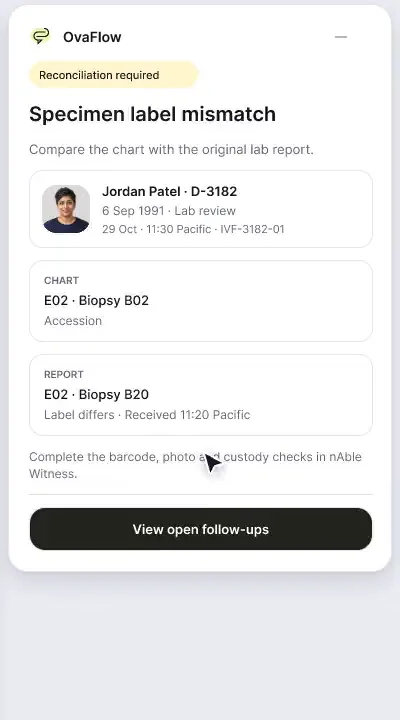
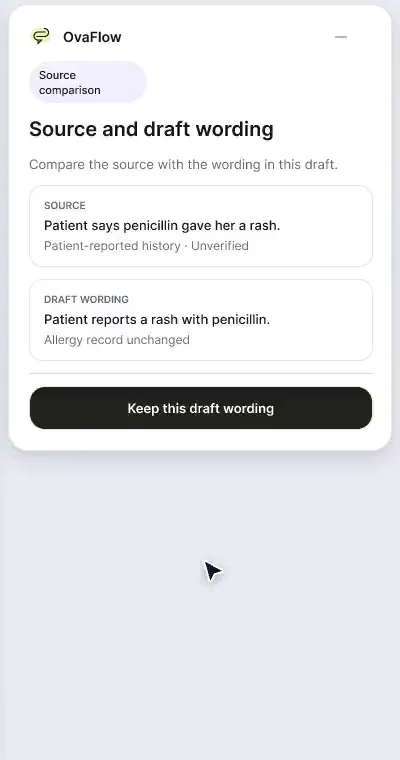
A patient-reported penicillin rash is surfaced against the chart, a monitoring note is confirmed saved rather than assumed, and a specimen label mismatch stops review.
A floating companion designed to dock away from Save buttons, stay out of keyboard focus, ask before listening, and let staff practice outside any chart.
Next step
We'll replay this flow against your roles and handoffs, using fictional records. Please don't send patient data.